Project 16: Encipher It (10 pts.)

What You Need

You need a computer with a Web browser. I wrote the instructions using Google Chrome, but any browser should work.

Creating the Bookmark

Open the Google Chrome browser and go to https://encipher.it/

On the upper left of the page, find the sentence saying "Drag this link: Encipher It to your Bookmarks Bar".

Point to the blue "Encipher It" text, hold down the left mouse button, and drag it to the bookmarks bar in the upper portion of your Chrome window, as indicated by the green arrow in the figure below:

A bookmark named "Encipher It" appears.

Opening Your Email

Open any web-based email, such as your CCSF Student Email.

Note: If you are working in S214, you should use a different email account with a password you never use elsewhere.

Sending an Encrypted Message

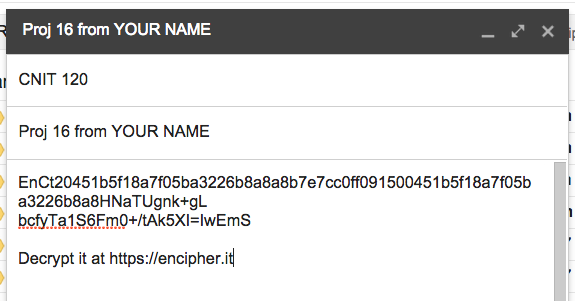
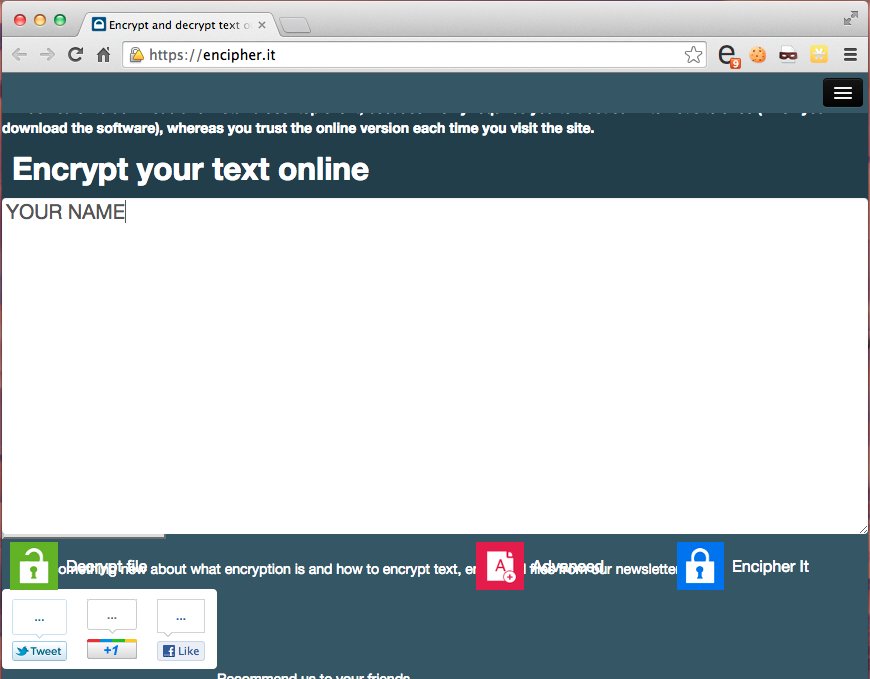
Compose a message as shown below, to [email protected] with a subject of "Project 16 from YOUR NAME", and YOUR NAME in the body. Don't use the literal text "YOUR NAME"--use your own name.

Send a Cc: to yourself.

Click the "Encipher It" bookmark.

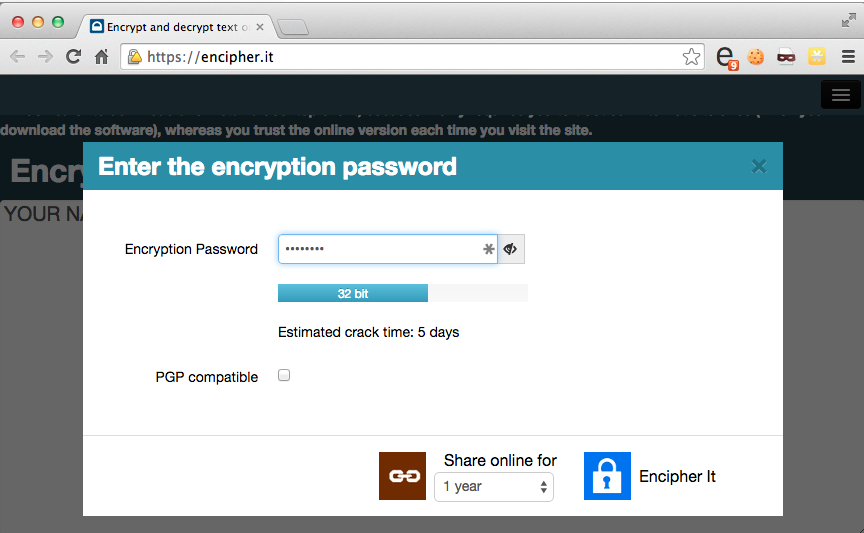
A box pops up asking for an Encryption Key. Enter CNIT120 and click the Encrypt button.

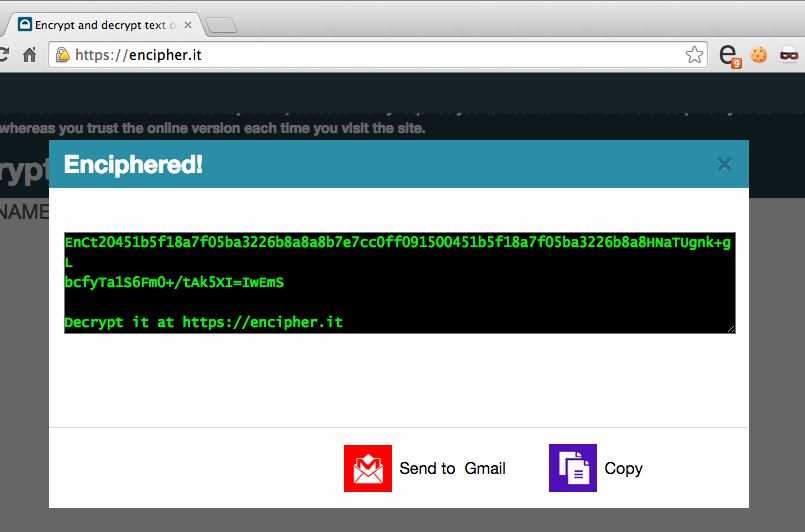
The body of the message turns to scrambled text.

Send the email.

Open your Inbox and open the message you just sent yourself.

Click the "Encipher It" bookmark and verify that your encrypted message becomes readable.


Last modified: 10-18-11 10:25 am