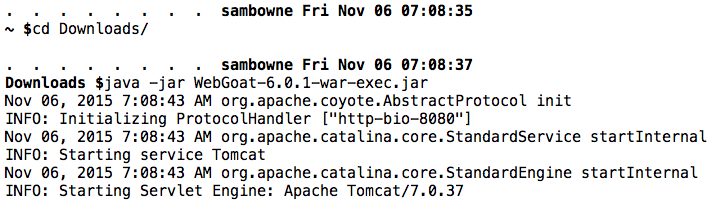
Start Webgoat as you did before, so you can see the WebGoat main page in Firefox.
At the upper left of the WebGoat window, click "Access Control Flaws".
In the "Access Control Flaws" section, click "Using an Access Control Matrix", as shown below.
Click the Lesson Plan button. A box opens explaining the purpose of this lesson. Read it.
At the top of the window, click the Hints button. Read all the hints.
Use the form to check each user's access to each resource. You should be able to find a user that can access resources that should be denied. If you get stuck, click the Solution button. When you find the user with improper access rights, the "Using an Access Control Matrix" item will show a green check mark, as shown below.

At the upper left of the WebGoat window, In the "Access Control Flaws" section, click "Bypass a Path Based Access Control Scheme", as shown below:
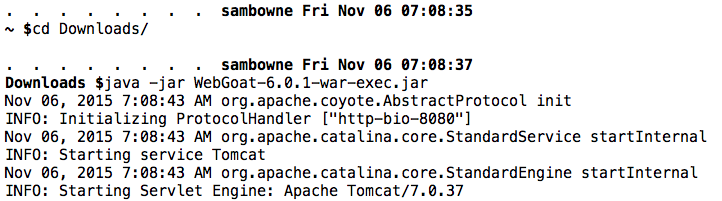
Click the Lesson Plan button. A box opens explaining the purpose of this lesson. Read it.
Note the "Current Directory", as shown in th eimage above.
If youare using Windows, open a Windows Explorer window, and navigate to that directory.
If you are using a Mac, open a Finder window, and, from the menu bar, click Go, "Go to Folder...". Enter the folder path and press Enter.
You should see the contents of the "en" folder, as shown below:

This form is intended to let you read the files shown to the right in the image above, but not any other directories.
However, a hacker who knows how to manipulate Web requests can violate this rule and see system files, such as the main.jsp file outlined in green in the image above. This file is two folders above the directory containing the normally viewable files.
In a command-line environment, a double dot followed by a slash moves one folder up, so this relative path points to the main.jsp file:
../../main.jsp
Click in the Firefox window to make it active. Press and release the Alt key on the keyboard.
In Firefox, click Tools, "Tamper Data".
In Tamper Data, at the upper left, click "Start Tamper".
In Firefox, in the WebGoat window, select a file and click the "View File" button.
A box pops up asking "Continue Tampering?". Click Tamper.
A "Tamper Popup" box appears, as shown below. On the right side, notice the "File" parameter value, as highlighted in the image below. Change this value to
../../main.jsp

Leave the data unchanged for now, and in the "Tamper Popup" box, click OK.
A box pops up, asking if it should change the Content-Length parameter to reflect the change you made, as shown below.
Click OK.

A "Tamper with request?" box pops up, as shown below. Clear the "Continue Tampering?" box and click the Submit button.

The page loads, with the red message "File is already in allowed directory - try again!", as shown below:
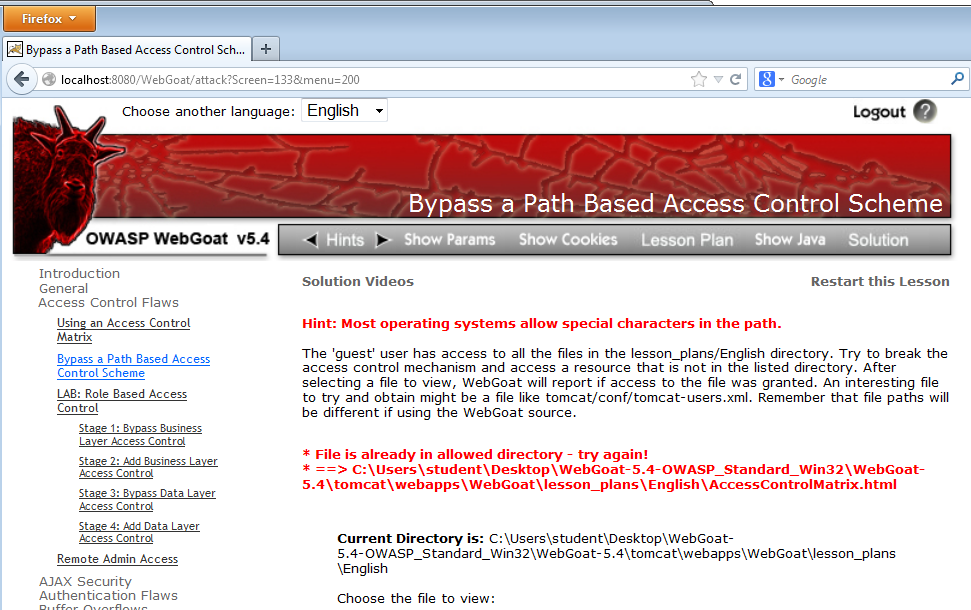
Repeat this process, but change the parameter value in Tamper Data as recommended in the Hints.
WARNING: The Hints are not exactly correct. They were developed for an earlier version of WebGoat which did not support multiple languages, so you need to add an additional ../ to the path they recommend.
hen you succeed, the "Bypass a Path Based Access Control Scheme" item will show a green check mark, as shown below.

Make sure both green check marks are visible.
Save this screen shot with a filename of Proj 15 from Your Name.
Email the image to cnit.123@gmail.com with a subject of "Project 15 from YOUR NAME".