
This is your Target.
Use this command to find your Target IP address:
ifconfig
scapy

i = IP()
i.display()
If the colors are difficult to see, adjust them by clicking Edit, "Profile Preferences", Colors. I used "Black on light yellow".
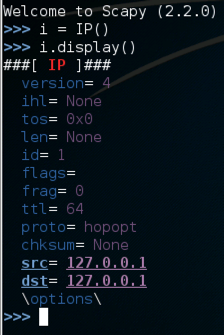
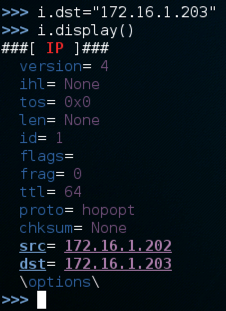
Use these commands to set the destination IP address and display the properties of the i object again. Replace the IP address in the first command with the IP address of your target Target machine:
i.dst="192.168.198.138"

i.display()
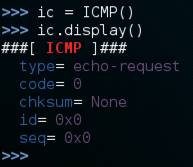
Use these commands to create an object named ic of type ICMP and display its properties:
ic = ICMP()

ic.display()
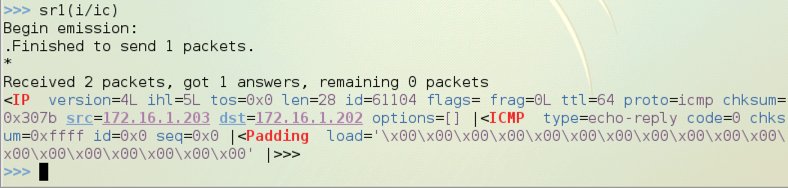
Use this command to send the packet onto the network and listen to a single packet in response. Note that the third character is the numeral 1, not a lowercase L:
sr1(i/ic)
Use this command to send a packet that is IP at layer 3, ICMP at layer 4, and that contains data with your name in it (replace YOUR NAME with your own name):
sr1(i/ic/"YOUR NAME")
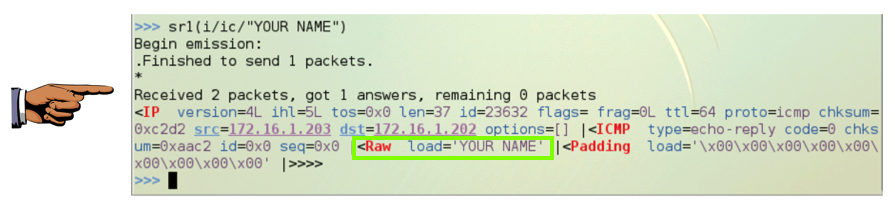
Make sure you can see your name in the response packet.
Save a screen image with the filename Proj 9a from Your Name.
On the target Windows machine, in a Command Prompt window, type these commands, pressing Enter after each one.
Note that the second switch in the ncat commmand is a lowercase L, not the numeral 1.
cd \program files\nmap

ncat -u -l 4444
Note that the second switch in the nc commmand is a lowercase L, not the numeral 1.
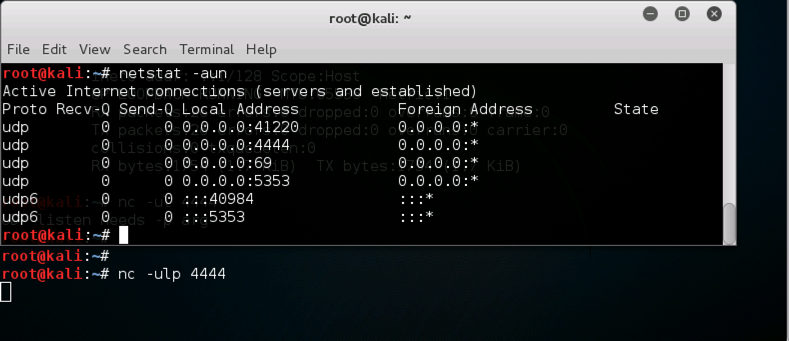
nc -ulp 4444
In the Terminal window, at the top, click File, "Open Terminal" to open a second Terminal window. In the second window, execute this command:
netstat -aun
u = UDP()

u.display()
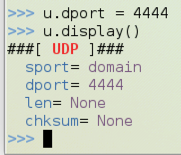
Execute these commands to change the destination port to 4444 and display the properties again:
u.dport = 4444

u.display()
Execute this command to send the packet to the Target machine:
send(i/u/"YOUR NAME SENT VIA UDP\n")

Save a screen image with the filename Proj 9b from Your Name.
Email the images to cnit.123@gmail.com with a Subject line of Proj 9 from Your Name.
http://packetstorm.linuxsecurity.com/papers/general/blackmagic.txt
http://www.secdev.org/projects/scapy/