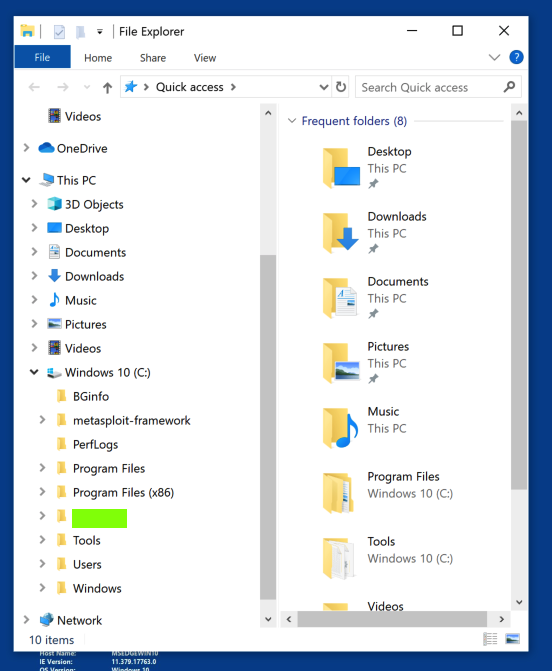
Flag PMA 41.1: C: Subfolder (20 pts)Make sure Immunity Debugger is installed on your Windows virtual machine.Open File Explorer. In the left pane, expand the C: drive. The flag is covered by a green box in the image below.
|
The steps below this box explain how to build your own machine, which will take some time.
Installing a Hypervisor
Install VMware, VirtualBox, or some other virtualization software on your machine.I recommend the VMware Products.
Windows 11 Premade VMs
This is a VMware VM. It has a TPM, encrypted with a password of P@ssw0rdIf you have an Intel or AMD processor, download this file:
Win11_25H2_amd_w_Tools.zip
Size: 25,272,952,856 bytes (25.28 GB)
SHA-1: 028b496cb70f43ae0ab8cee8188c2fc42f4d92ac
Login: student and P@ssw0rdIf you have an ARM processor, download this file:
Win11_25H2_w_Tools.vmwarevm.zip
Size: 25,555,388,961 bytes (25.57 GB)
SHA-1: be6401b53af418e936f61b8ef067922f5a6913ab
Login: student1 and P@ssw0rdIt is a complete VMware virtual machine. Unzip it into a folder.
In VMware, click File, Open and navigate to the .VMX file in that folder.
In case anyone needs them, here's are old VMs. I don't recommend using them anymore.
Win11_NoTPM.vmwarevm.zip
Win11ARM_w_Tools.zip
Win11_For_Malware_2025.zip
Win10_w_Tools_061721a.7z VMware, Login: IEUser Passw0rd!
Win10_w_Tools061721.ova VirtualBox, Login: IEUser Passw0rd!
Flag PMA 41.1: C: Subfolder (20 pts)
Make sure Immunity Debugger is installed on your Windows virtual machine.Open File Explorer. In the left pane, expand the C: drive.
The flag is covered by a green box in the image below.
Mac M1, M2, or M3 Users
If you are using a Mac M1, M2, or M3 machine, you cannot use the process below because you have the newer ARM processor.Follow these instructions instead.
https://developer.microsoft.com/en-us/windows/downloads/virtual-machines/
Once you get the VM, make sure it has a hard disk size of 100 GB or larger.
Allow Windows to install any updates it wants to.
You may need to install VMware Tools (or the comparable software) manually.
You may find these pages useful:
managedVM.autoAddVTPM = "software"
This will let you use a username and password to log in instead of a Live account.start ms-cxh:localonly
Download and install Firefox.
Navigate to: Computer Configuration > Administrative Templates > Windows Components > Windows Update > Manage end user experience.
Double-click Configure Automatic Updates.
Select Disabled, then Apply and OK.
In the "Virus & threat protection settings" section, click "Manage settings".
Scroll down and click "Add or remove exclusions". Add a folder exclusion for C:\
Instructions for VMware are here:
WinTools.zipIt contains all the installers detailed below.
Size: 1.68 GB (1,676,639,482 bytes)
SHA256: a648709f5a3597bbcdd03fc2b3c1d157b78eb6ba81cc28c0a57706d948248889
Follow the instructions there to install the programs.
Easy RM to MP3 Converter 2.7.3.700 - Local Buffer Overflow
Run the EXE installer
Explorer Suite (Includes CFF Explorer)
Run the EXE installer
HxD
HashCalc No Longer Needed
The download link below no longer works. Instead, to calculate hashes, use PowerShell, like this:Available algorithms include MD5 and SHA256.Get-FileHash -Algorithm SHA1 file.txt
Immunity Debugger
(Also installs Python 2.7)
Mona.pyx -- Rename to mona.py and
copy to "C:\Program Files (x86)\Immunity Inc\Immunity Debugger\PyCommands"
For Win 11 on ARM, download the latest Nmap from nmap.org.
This old installer no longer works.
Nmap
For Win 11 on ARM, download the latest Wireshark from wireshark.org.
Wireshark
Visual Studio
Download and install Visual Studio Community 2022 as explained
here.
capa v1.6.3
Double-click, drag to C:\Tools
Dependency Walker 2.2
Double-click. Drag all the files to C:\Tools. Right-click the EXE in C:\Tools, "Pin to Start"
Double-click. Drag all the files to C:\Tools. Right-click the EXE in C:\Tools, "Pin to Start"
JDK 16.0.1 General-Availability Release
Double-click openjdk-16.0.1_windows-x64_bin.zip. Drag the jdk-16.0.1 folder to C:\Program Files\Java
Ghidra v9.2.4
Double-click ghidra_9.2.4_PUBLIC_20210427.zip. Drag the ghidra_9.2.4_PUBLIC folder to "C:\Program Files"
Right-click C:\Program Files\ghidra_9.2.4_PUBLIC\ghidraRun.bat, "Send to", "Desktop (create shortcut)"
A better option is to download Ghidra 12, or the latest version, from https://github.com/NationalSecurityAgency/ghidra
You will need to install this JDK:
JDK 25.0.1 General-Availability Release
Double-click openjdk-25.0.1_windows-x64_bin.zip. Drag the jdk-25.0.1 folder to C:\Program Files\Java
ILSpy
Double-click. Drag all the contents to C:\Tools, right-click C:\Tools\ILSpy.exe, "Pin to Start"
Jasmin
Drag jasmin-1.5.8-PC.jar to C:\Tools, right-click jasmin-1.5.8-PC.jar, "Send to", "Desktop (create shortcut)"
Metasploit
Launch the installer from an Administrator PowerShell window.
Halfway through, the installer pauses for a minute or two, just wait for it. This worked on Windows 11 Pro.
On a trial version of Windows 11, I needed to use this trick: FIX: Can't Install: Setup Wizard ended Prematurely
OllyDbg 1.10
Double-click. Drag all the contents to C:\Tools (skip the readme). Right-click C:\Tools\OLLYDBG.EXE, "Pin to Start"
OllyDbg Plugins: OllyDump
Double-click g_ollydump221b.zip. Drag OllyDump.dll to C:\Tools
PEiD
Double-click PEiD-0.95-20081103.zip.
Drag all the contents to C:\Tools (skip the readme).
Right-click C:\Tools\PEiD.exe, "Pin to Start"
pestudio
Double-click pestudio.zip. Drag the pestudio folder to C:\Program Files(x86)
Right-click C:\Program Files(x86)\pestudio\pestudio.exe, "Pin to Start"
PEview
Double-click PEview.zip. Drag PEview.exe to C:\Tools, right-click C:\Tools\PEview.exe, "Pin to Start"
PracticalMalwareAnalysis-Labs
Unzip with 7-Zip and the password malware.
Run the EXE. Redirect the output to the Desktop.
setdllcharacteristics
Double-click setdllcharacteristics_v0_0_0_1.zip and drag
setdllcharacteristics.exe to C:\Tools
Sysinternals Suite
Double-click. Drag all the contents to C:\Tools (skip the readme).
Right-click C:\Tools\Procmon64.exe, "Pin to Start"
Right-click C:\Tools\procexp64.exe, "Pin to Start"
Note: if you are using Windows 11 on ARM, don't install those files. Instead, download Procmon, and Procmon, unzip them, put Procmon64a and procexp64a in C:\Tools, and pin them to Start.
UPX
Double-click upx-3.96-win64.zip. Double-click the
upx-3.96-win64 folder. Drag
upx.exe to C:\Tools
Vulnserver
Double-click vulnserver.zip, and copy
vulnserver.exe and
essfunc.dll to C:\Tools
x64dbg
Extract snapshot_2021-06-14_16-37.zip into
a folder.
Rename that folder to x64dbg.
Drag it to
C:\Program Files
Right-click C:\Program Files\x64dbg\release\x64\x64dbg.exe
and click "Pin to Start".
Right-click C:\Program Files\x64dbg\release\x32\x32dbg.exe
and click "Pin to Start".
OR download the latest version from the link above instead.
Yara
Double-click yara-v4.1.1-1635-win64.zip. Drag copy yara64.exe
and yarac64.exe to C:\Tools
In Control Panel, System, "Advanced System Settings",
click "Environment Variables".
In "System variables", double-click Path.
Add C:\Tools to the Path.
Changelog
Disable Updates changed to scheduled task and minor updates 8-5-25
Command to make a local account on Win 11 updated 8-9-25
Download VM from Microsoft links updated 12-6-25
Updated with ARM VM 12-16-25
Login username updated 12-17-25
AMD VM updated and Win 10 section removed 12-19-25