M 147: Troubleshooting Emulators on Windows (40 pts extra)

What You Need for This Project

Background

This project presents common troubleshooting techniques to deal with common emulator problems.

Preparation

In Android Studio, create an emulator with these settings:

Open Emulator in a New Window

In Android Studio, at the top left, click the four-bar icon.

Click Settings.

On the left side, expand the Tools section and select Emulator.

Uncheck the "Launch in the Running Devices tool window": checkbox.

Click OK to apply the changes and close the dialog.

M 147.1: Cold Boot (5 pts)

This action is often needed after changing HTTP proxy settings.

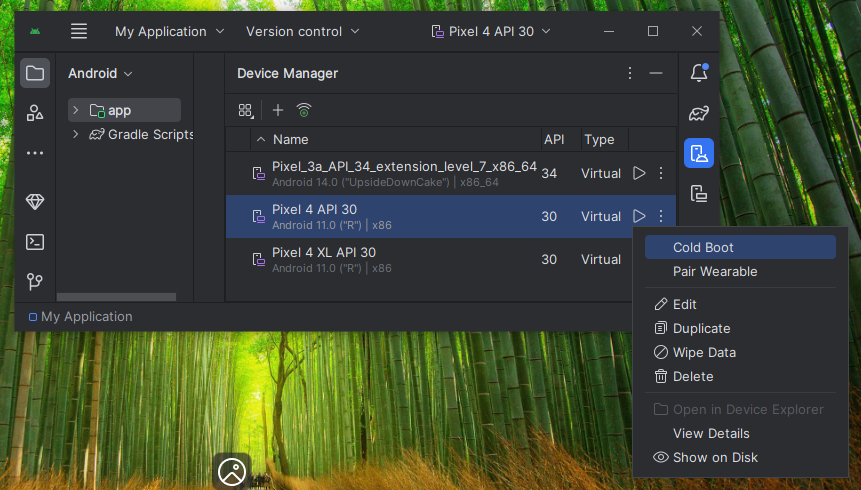
In Android Studio, in Device Manager, on the line showing your device, at the right side, click the three-dot icon, and click "Cold Boot", as shown below.

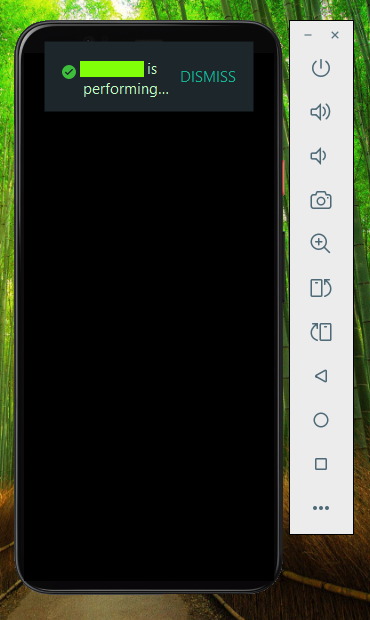
When the boot process begins, you will see the message shown below.

The flag is covered by a green box in the image below.

M 147.2: Disabling Mobile Data (5 pts)

This action may be needed to get Web traffic to go through the Burp proxy.

In the emulated Android phone, open Settings.

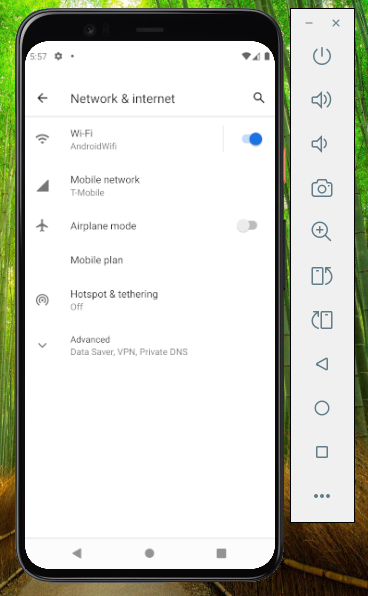
Open "Network & internet".

You should see a wireless connection named "AndroidWiFi" and also an emulated cellular network connection.

In the image below, the emulated connection is in the "Mobile network" section, labelled"T-Mobile".

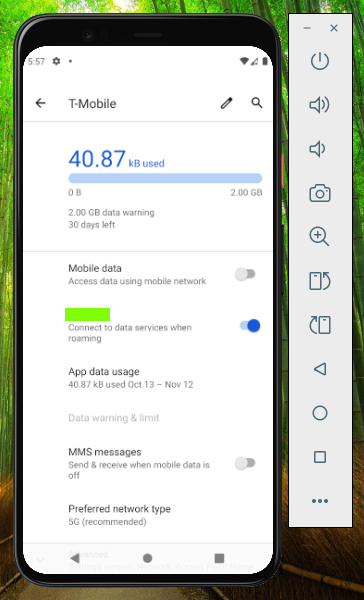
Click "Mobile network". Disable "Mobile data", as shown below.

The flag is covered by a green box in the image below.

M 147.3: Disabling Play Protect (5 pts)

This action may be needed to install the insecure applications used in other projects.

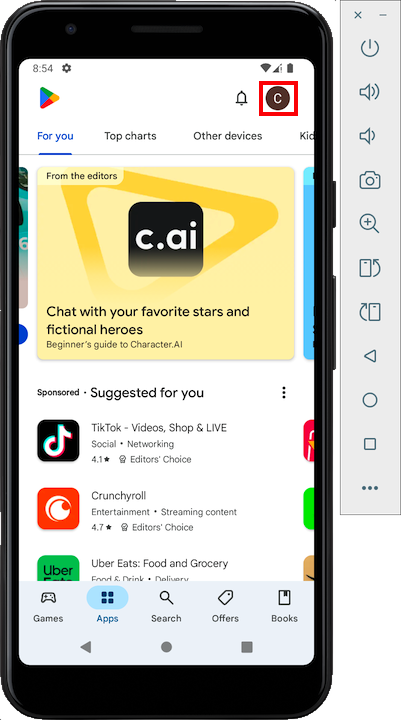
In the emulated device, open "Google Play". Sign in if necessary.

At the top right, tap the circular icon, outlined in red in the image below.

In the next screen, tap "Play Protect".

Troubleshooting

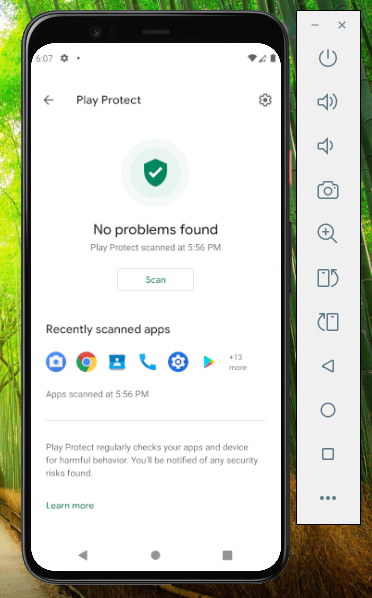
If the "Play Protect" option does not appear, open Settings and search for "Play Protect." Tap it to open the Google Play page shown below.

In the Play Protect screen, at the top right, tap the gear icon.

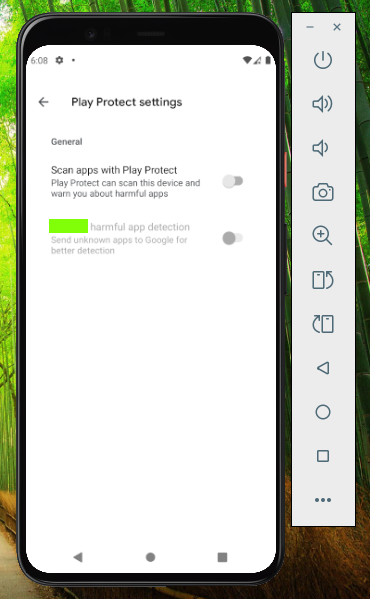
Disable "Scan apps with Play Protect", as shown below.

In the confirmation box, tap "Turn off".

The flag is covered by a green box in the image below.

M 147.4: Fixing the ADB Path (10 pts)

In Android Studio, at the top left, click the four-bar icon.

Click Tools, "SDK Manager".

At the top, note the Android SDK Location, outlined in red in the image below.
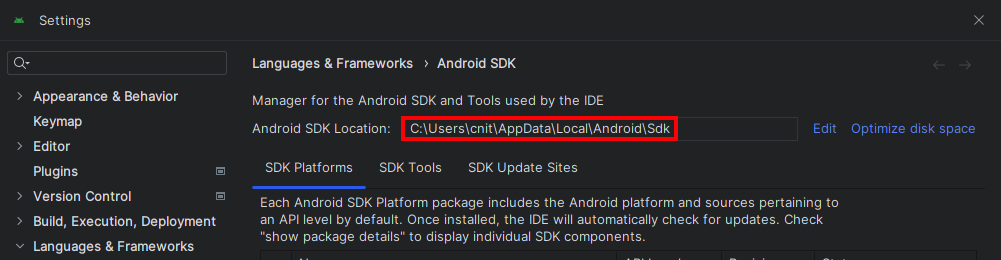
Open a Terminal or Command Prompt. Execute these commands, placing the correct Android SDK Location in the first command:

cd C:\Users\cnit\AppData\Local\Android\Sdk
cd platform-tools
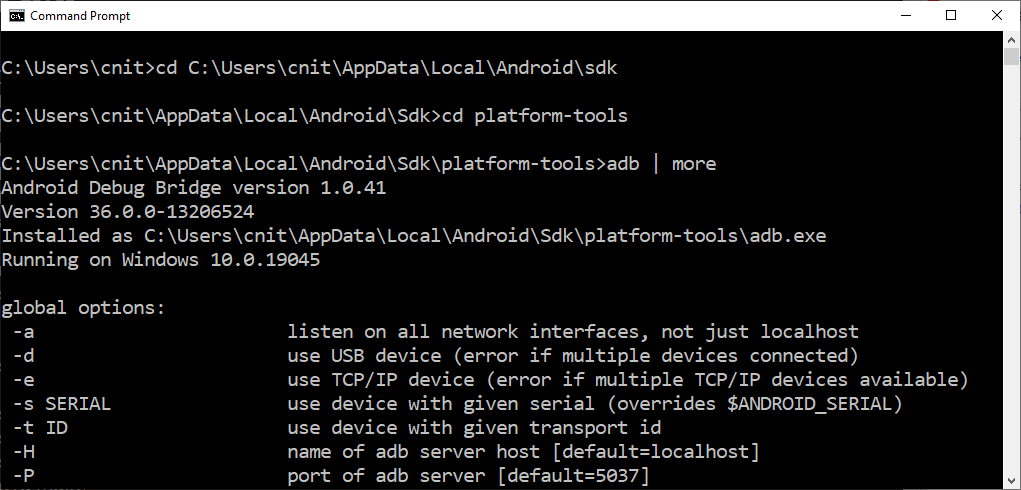
adb | more
Adb should run, as shown below.
From the search bar at the lower left of the desktop, search for ENVIRONMENT.

Click "Edit the system environment variables".

In the System Properties box, at the bottom, click the "Environment Variables..." button.

In the Environment Variables box, in the top section, click Path. Click the Edit... button.

Add the path to ADB to the list, as shown below.
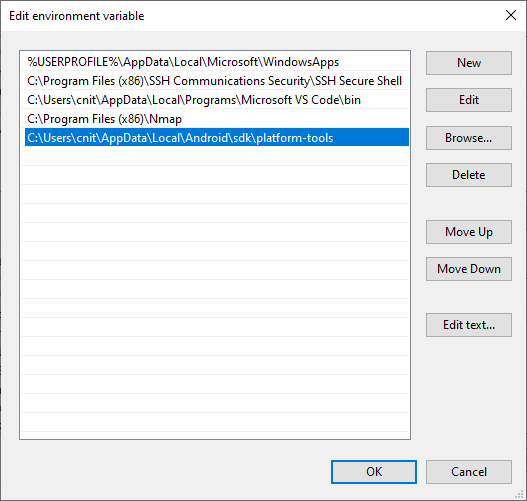
At the bottom of the Edit Environment Variables box, click OK.

At the bottom of the Environment Variables box, click OK.

At the bottom of the System Propertie box, click OK.

Close the Terminal or Command Prompt and open a new one.

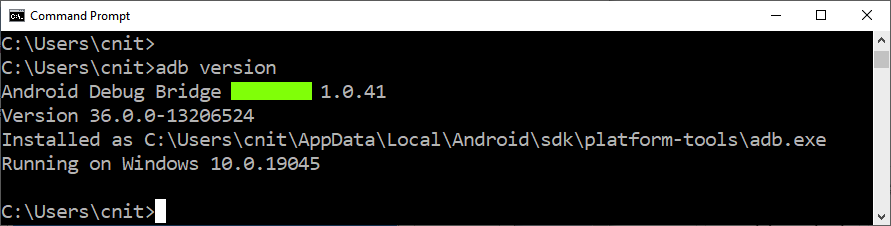
Execute this command:

adb version
The flag is covered by a green rectangle in the image below.
M 147.5: ADB over TCP (15 pts)

In some configurations, you need to connect ADB to an emulator running on a different host machine.

First, you need to find your host machine's IP address.

On your host machine, in a Terminal or Command Prompt, execute this command:

ipconfig
Find your host system's IP address, as outlined in yellow in the image below.

Finding the TCP Port to Connect to

On your Windows system, execute this command.
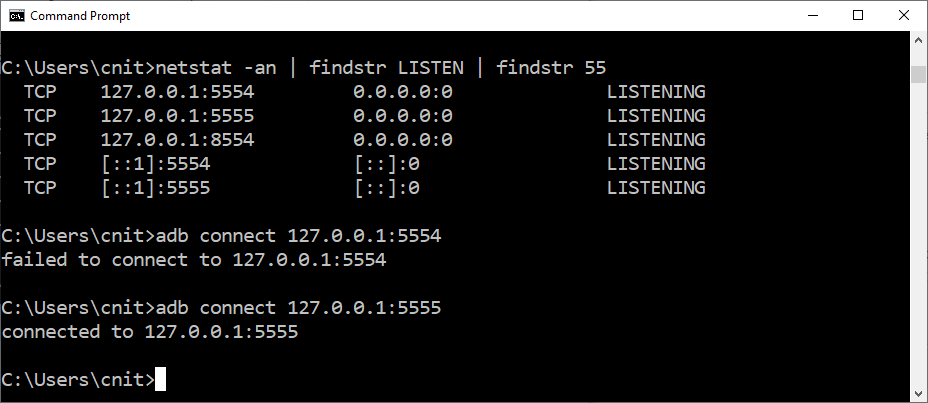
netstat -an | findstr LIST | findstr 55
Find listening ports beginning with 55.

In the image below, ports 5554 and 5555 are listening.

Try connecting to each port in turn, with commands like these:

adb connect 127.0.0.1:5554
adb connect 127.0.0.1:5555

adb kill-server
Find out which port number works to make a connection.

In the image below, port 5555 worked.

Fowarding the Port

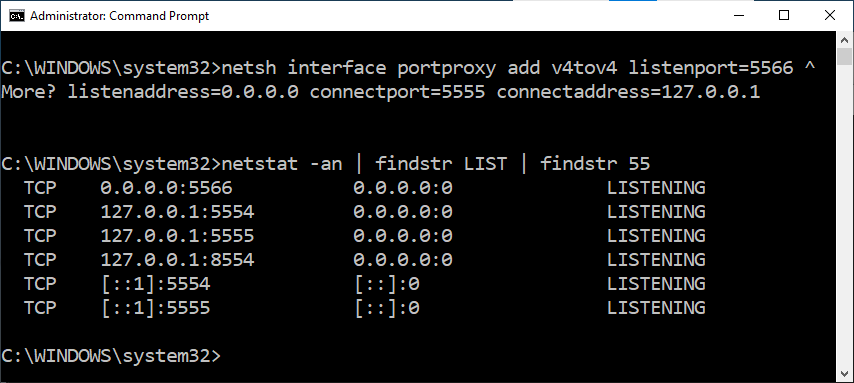
On your Windows system, open an Administrator Command Prompt (NOT PowerShell) and execute these command, replacing the connectport with the port number that worked in the previous test.
netsh interface portproxy add v4tov4 listenport=5566 ^
  listenaddress=0.0.0.0 connectport=5555 connectaddress=127.0.0.1

netstat -an | findstr LIST | findstr 55
You should see a process listening on the address 0.0.0.0:5566, as shown below.

Connecting via Public IP Address

Open a normal Command Prompt and execute this command, replacing the IP address with the public IP address of your Windows system.
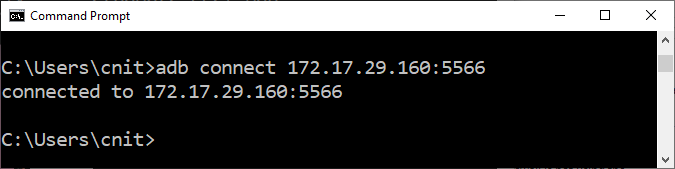
adb connect 172.17.29.160:5566
The connect should succeed, as shown below.

If it fails, turn off the Windows firewall.

Network Status on the Android Device

In the normal Command Prompt, execute these commands, replacing the IP address with the public IP address of your Windows system.

Note that the second command ends with lowercase ANLT.

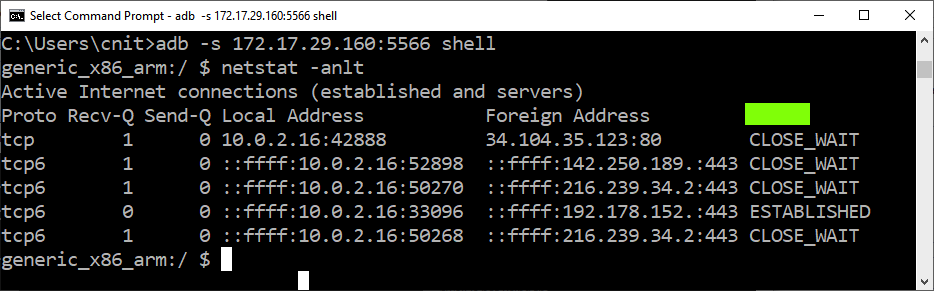
adb -s 172.17.29.160:5566 shell
netstat -anlt
The flag is covered by a green box in the image below.


Posted 10-16-25
Open emulator in new window instructions added 10-16-25
Image 8 fixed 10-16-25
Note about CMD, not Powershell added 11-12-25