Get the Android-x86 ISO from this page:
When I did this in Aug, 2025, the file was android-x86_64-9.0-r2.iso.On the right side, click "Create a New Virtual Machine".
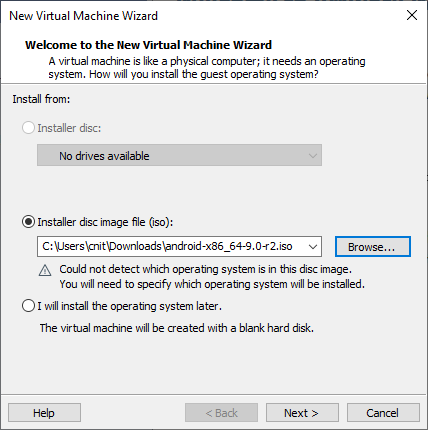
In the New Virtual Machine Wizard, at the "Install from" page, click the Browse... button and select the Android ISO you downladed, as shown below. Then click Next.
In the "Guest operating system" page, select Linux and accept the default version of Ubuntu. Then click Next.
In the "Name the virtual machine" page, enter a name of Android. Then click Next.
In the "Specify Disk Capacity" page, accept the default choices of 20 GB and "Split the virtual disk into multiple files". Then click Next.
On the "Finish" page, click Finish.
In VMware Workstation Player, on the right side, click "Play virtual machine".
The installer launches.
Click in the installer window.
Press the down-arrow twice to select "Installation" and press Enter. ]
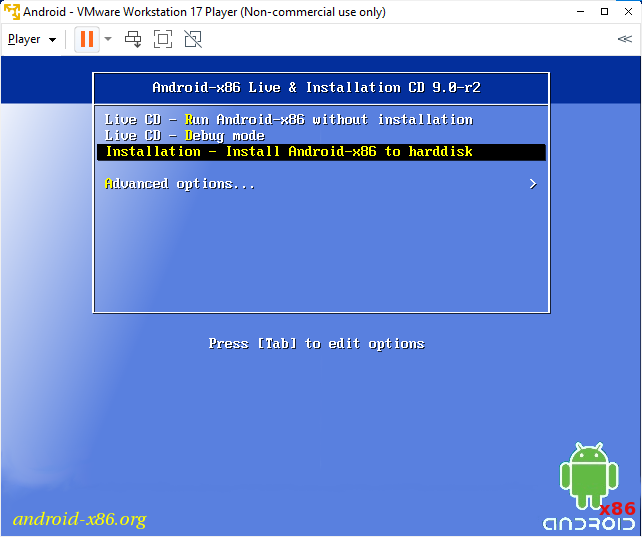
Press the left-arrow key to see the boot options. Erase the word "quiet" and replace it with "nomodeset xforce" as shown below.
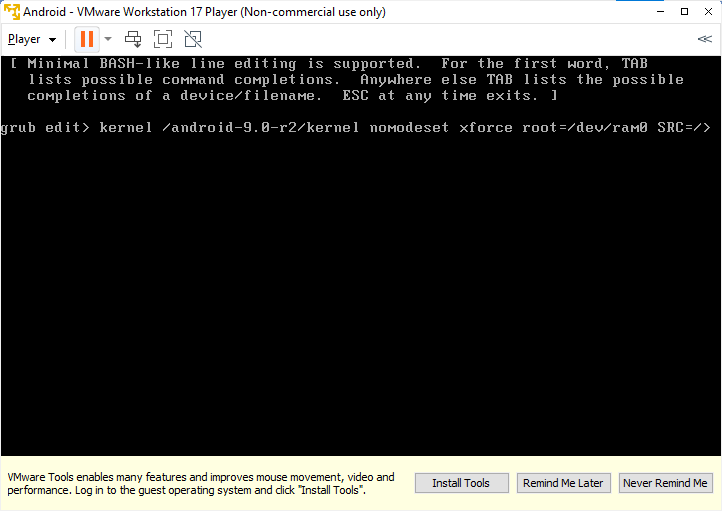
Press Enter. Type b.
Now you see a graphical Android startup screen. Quickly click the mouse inside it, swipe up from the bottom to wake it up, and if it asks for a PIN, enter 1234.
Follow the on-screen prompts to connect to Wi-Fi.
Log in to a Google account.
Press Alt+F1.
A console window opens.
Execute these commands:
mkdir /mnt/sda
mount /dev/block/sda1 /mnt/sda
vi /mnt/sda/grub/menu.lst
Now you need to type the commands below, even if ou don't see any results on the keyboard:
Press Esc to exit insert mode.
Type :wq to save the file and exit the vi editor.
Reboot the VM by typing reboot
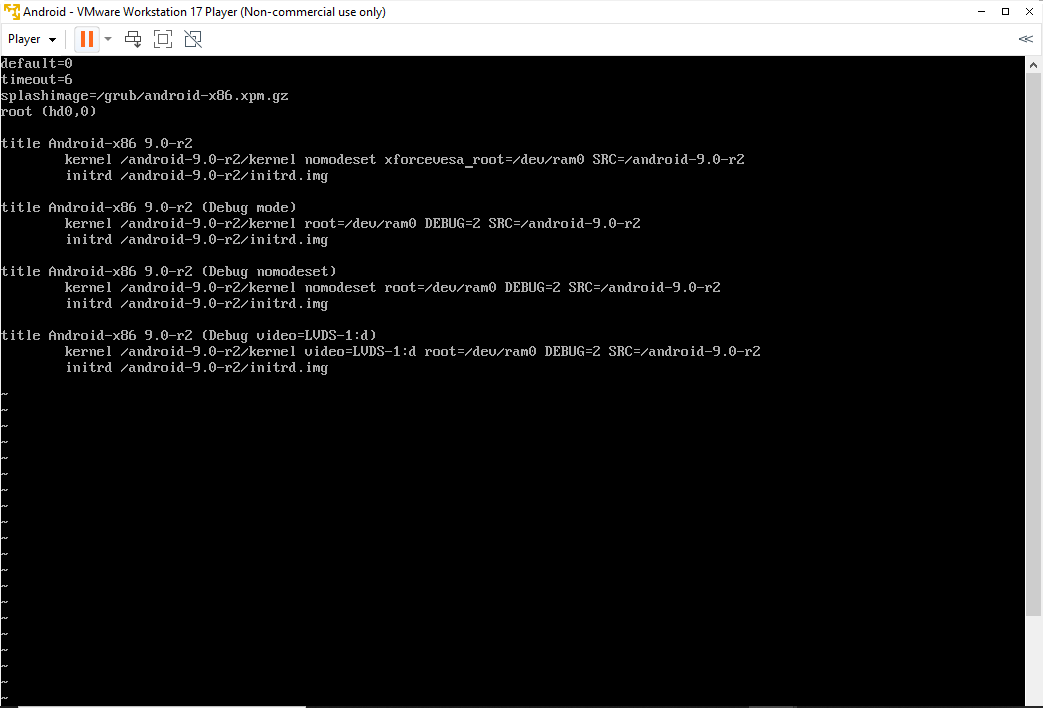
Lower Resolution
If you want a smaller screen, replace nomodeset xforcevesa with vga=886 or, to see all modes, vga=ask and choose a mode.Note: these modes are in hexadecimal. To make the mode permanent, you need to replace "ask" with the decimal number in the menu.lst file.
M 148.1: Qute (15 pts)
In Google Play Store, install Qute.Launch it and follow the on-screen directions to allow its required permissions.
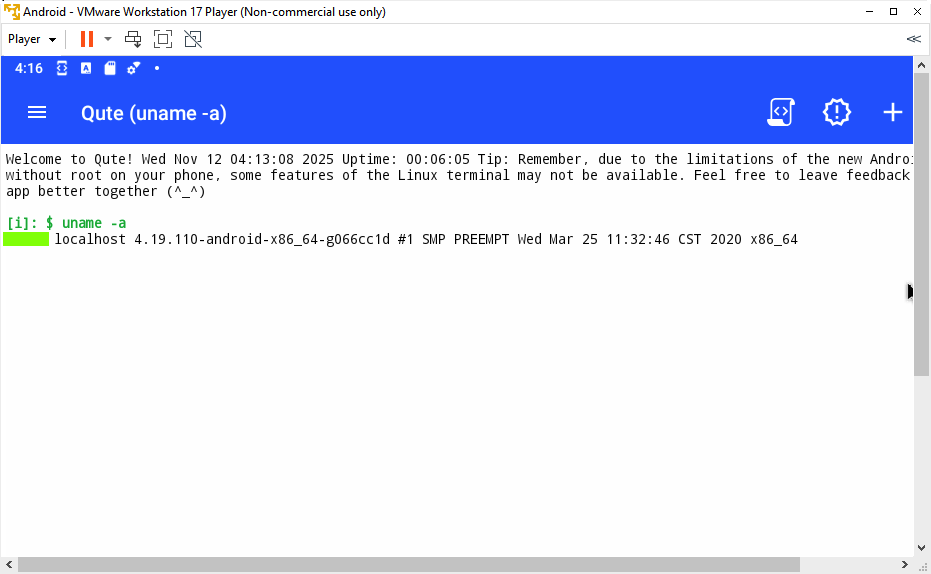
In Qute, execute this command:
The flag is covered by a green box in the image below.
Make sure Wi-Fi is on and connected.
Find your Android device's IP address, as shown below.
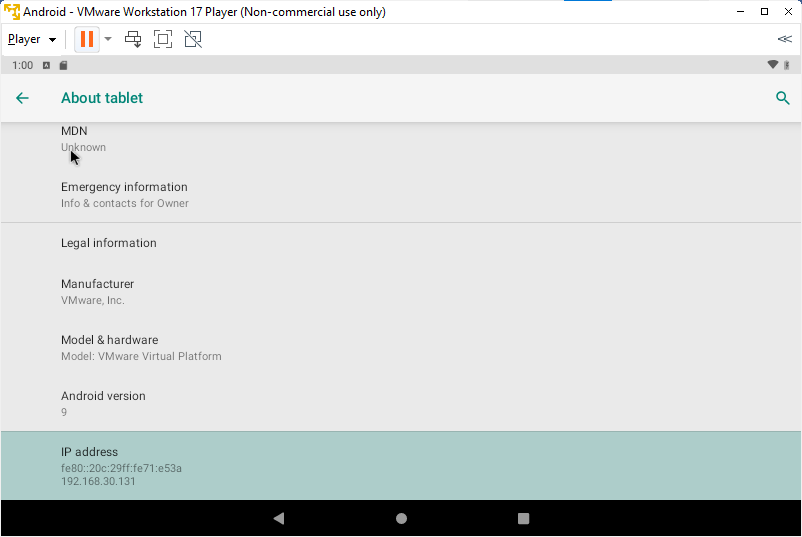
In a Debian Linux terminal, execute these commands, replacing the IP address in the third command with the IP address of your Android device:
sudo apt update
sudo apt install adb
adb connect 192.168.30.131
Posted 11-12-25
M 148.2: Build Parameters (10 pts)
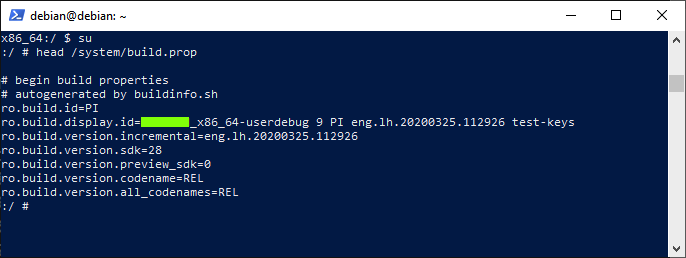
In a Debian Linux terminal, execute these commands:The flag is covered by a green box in the image below.