In System Preferences, search for Sharing.
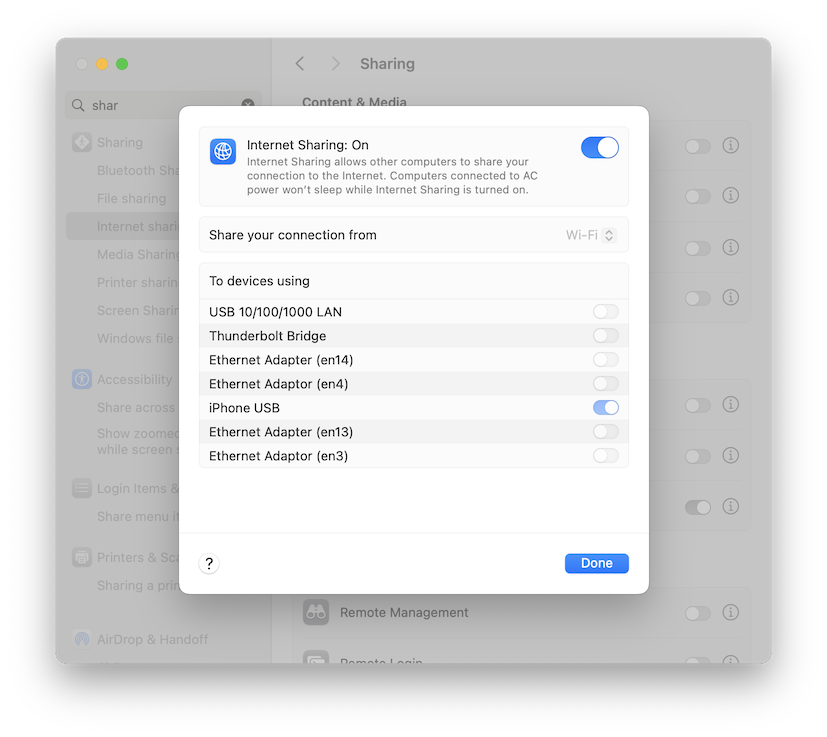
Click "Internet Sharing".
On the right side, in the "Share your connection from" list, select your Ethernet adapter. I was using a USB dongle named "AX8178" when I made the image below.
In the "Share your connection from" list, select Wi-Fi, as shown below.
In the "To devices using" section, enable "iPhone USB".
At the lower left, click Done.
On your mobile device, open a Web browser and enter this URL:
ad.samsclass.infoYou should see an error message saying your device is not connected to the Internet.
Connect your phone to your Mac with a USB cable.
Follow the on-screen instructions to allow the connection and trust the other device.
Open a Web browser and go to a Web page, such as samsclass.info.
If it doesn't work, go into Settings on the Mac, turn off Internet Connection Sharing, check all iPhone USB options (a second one appeard on my Mac), and start it again.
On your Mac, open a Terminal window and execute this command:
ifconfig
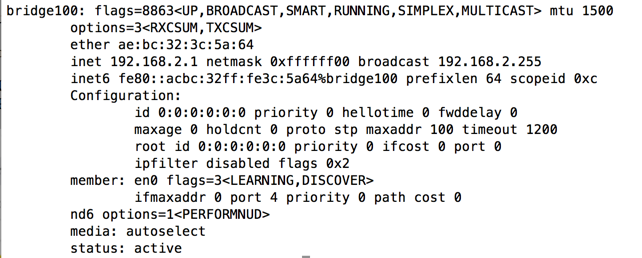
In my case the name was bridge100, as shown below.
Make a note of your bridge interface name. You will need it later, when you configure the "pf" firewall.
Burp opens a page saying "Temporary Project". Click Next.
Burp opens a page saying "Use Burp defaults". Click "Start Burp".
In Burp, click the Proxy tab.
If the Intercept button reads "Intercept is on", click it, so the message reads "Intercept is off".
At the top right, click "Proxy settings".
At the top, in the "Proxy Listeners" section, see if there are any entries on the box shown to the right.
If there are, click each entry to highlight it, and then click Remove to remove them all, as shown below.
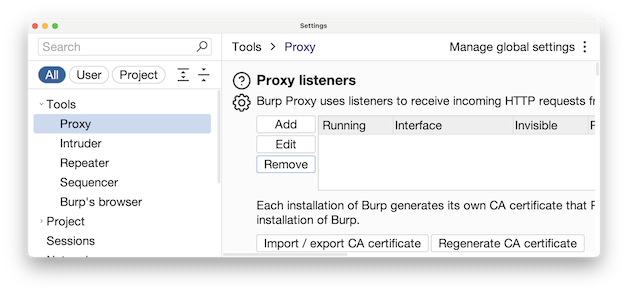
In Burp, at the top, in the "Proxy Listeners" section, click the Add button.
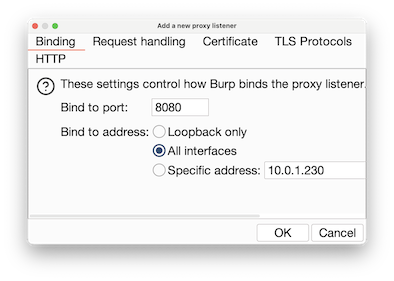
On the Binding tab, enter a "Bind to port" of 8080
Click the "All interfaces" button, as shown below.
Click the "Request handling" tab.
Click the "Support invisible proxying" box, as shown below.
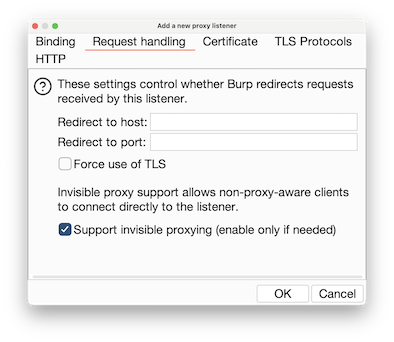
At the lower right of the box, click OK. A box pops up, asking "Are you sure...?". Click Yes.
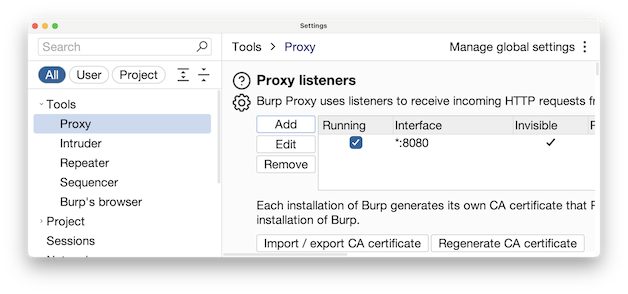
Burp should now show a Listener on "*:8080" with the Invisible box checked, and the Running box checked, as shown below.
However, the mobile device doesn't know it should be sending traffic to the proxy server, so Burp won't ever see it.
It is possible to configure the mobile device to use a proxy, but not all apps will respect that setting. Some apps will just send traffic past the proxy, defeating our goal of auditing the network traffic. A much better way to audit apps is to use the Mac firewall "pf" to send all traffic from the USB adapter through the proxy, so the mobile device won't know it's using a proxy.
To use the "pf" firewall, we need to create two files: "pf.rules" and "pf.conf". For our purposes these files can be very simple.
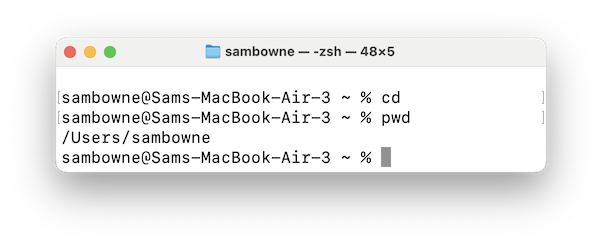
In the Terminal window, execute these commands.
cd
pwd
In my case, the directory was /Users/sambowne
Your directory will be different.
In the Terminal window, execute this command:
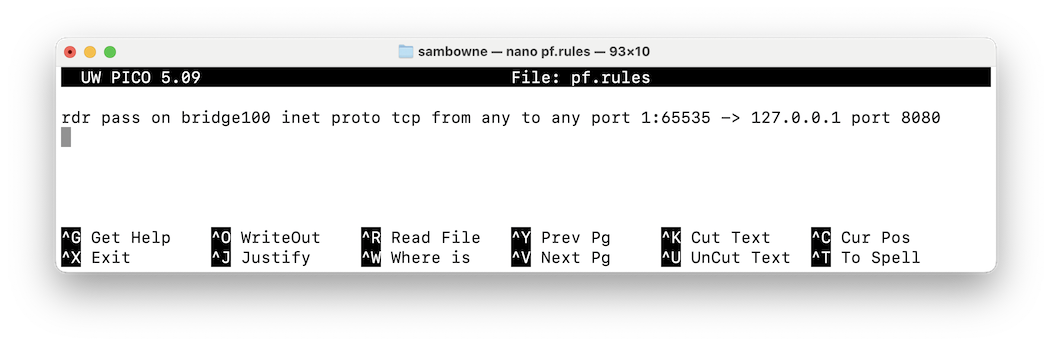
nano pf.rules
This rule redirects all TCP traffic from the USB connection to Burp, at 127.0.0.1:8080.
rdr pass on bridge100 inet proto tcp from any to any port 1:65535 -> 127.0.0.1 port 8080
Press Ctrl+X, Y, Enter to save the file.
In the Terminal window, execute this command:
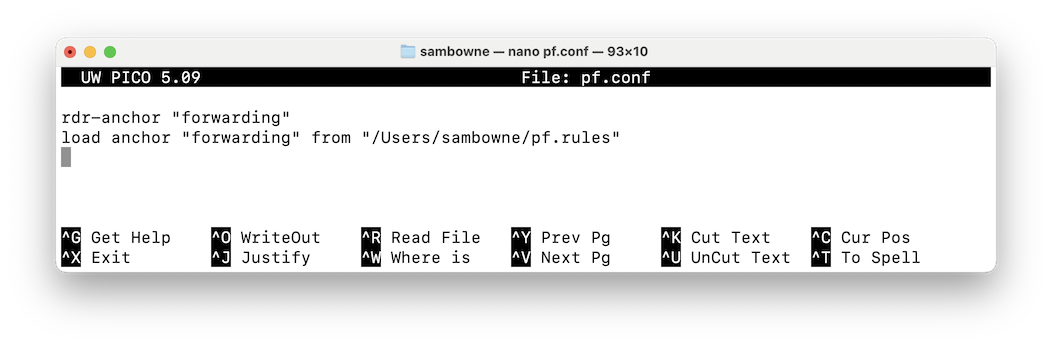
nano pf.conf
In the second line, change /Users/sambowne to the correct directory you found above.
This configuration file tells pf where to find the rules file.
rdr-anchor "forwarding"

load anchor "forwarding" from "/Users/sambowne/pf.rules"
Press Ctrl+X, Y, Enter to save the file.
The next step is to test the files.
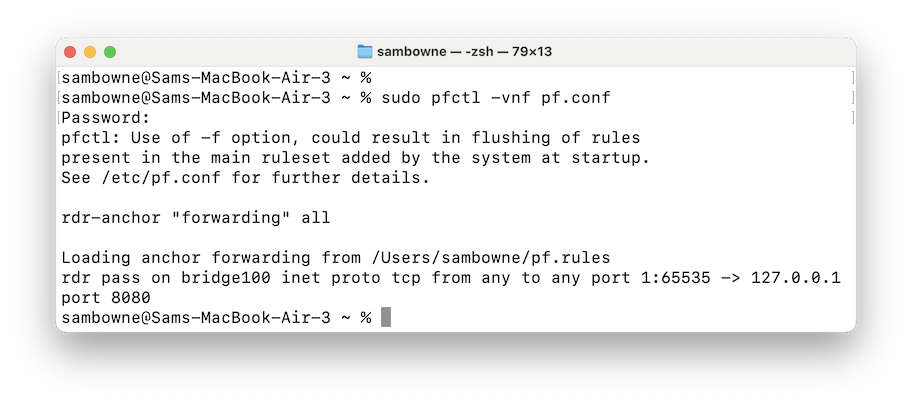
In the Terminal window, execute this command:
sudo pfctl -vnf pf.conf
If your files are correct, you'll see a "Loading anchor forwarding..." message, followed by the line beginning with "rdr pass on bridge", as shown below.
If there are errors in your files, you'll see error messages here. If that happens, use nano to edit the files and correct the errors.
When your files pass this test without errors, execute this command to start pf:
sudo pfctl -evf pf.conf
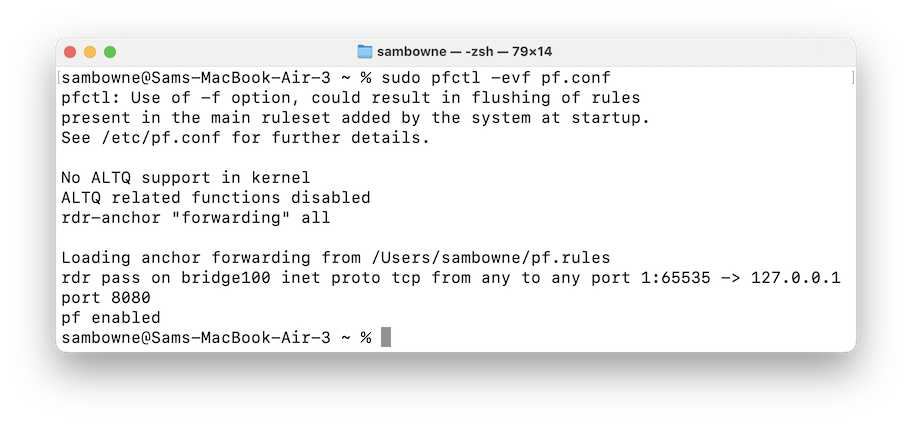
The page should load.
M 160.1: Server (15 pts)
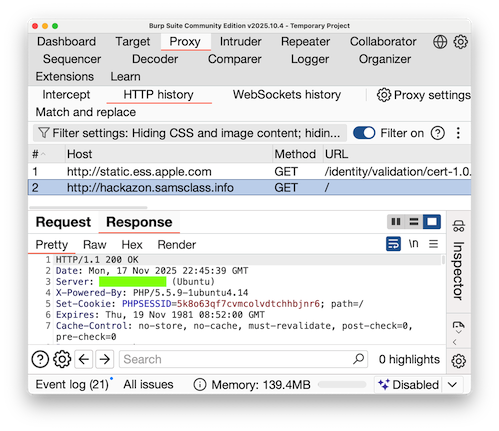
On your Mac, in Burp, click the "HTTP History" sub-tab.You should see traffic to http://hackazon.samsclass.info, as shown below.
Im the top pane, click the GET request that loaded hackazon.
In the lower left pane, click the Response tab.
The flag is covered by a green box in the image above.
On your Mac, install XCode and Homebrew.
Then execute this command to install libimobiledevice:
brew install libimobiledevice
Posted 11-17-25
M 160.2: Syslog (10 pts)
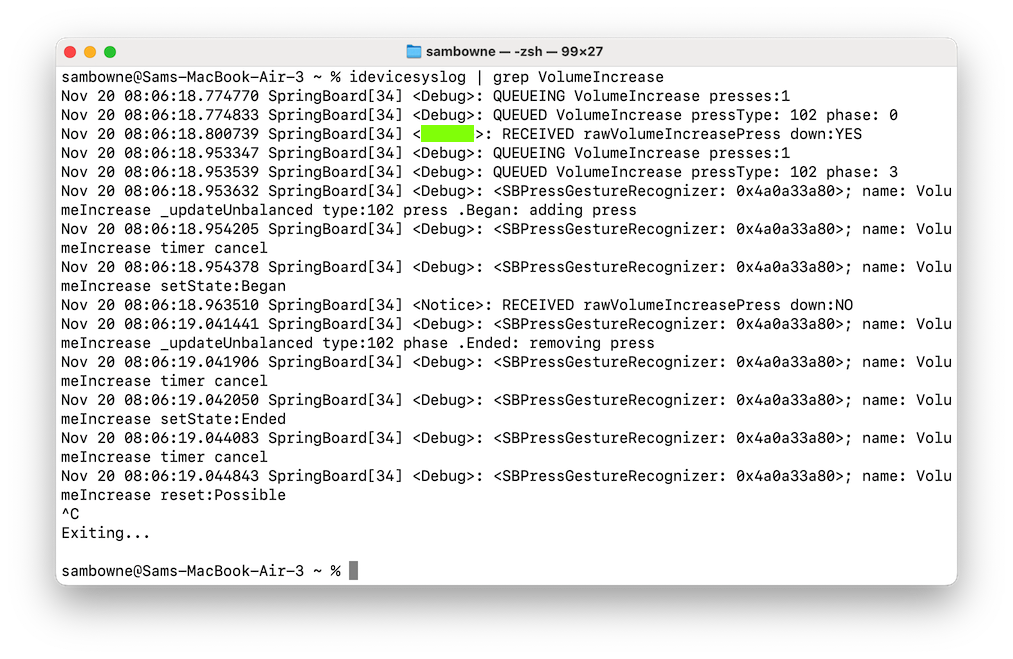
On your Mac, execute this command:Then press the Volume Up button on your iPhone.idevicesyslog | grep VolumeIncreaseYou should see log entries, as shown below.
The flag is covered by a green box in the image above.