You may be able to use the Android Studio emulator also, but I did not test that.
Open Settings.
Tap "Network & Internet".
At the top, tap Wi-Fi.
At the top, tap AndroidWiFi.
At the bottom, tap Advanced.
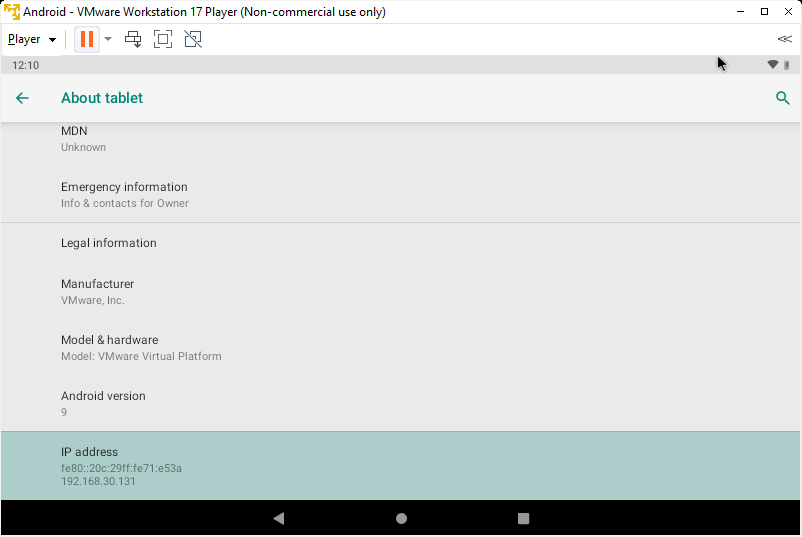
Find your device's IP address, as shown below.
adb connect 192.168.30.131
If not, you need to troubleshoot your networking.
After you establish a connection, execute this command to disconnect, replacing the IP address with the IP address of your Android emulator:
adb disconnect 192.168.30.131
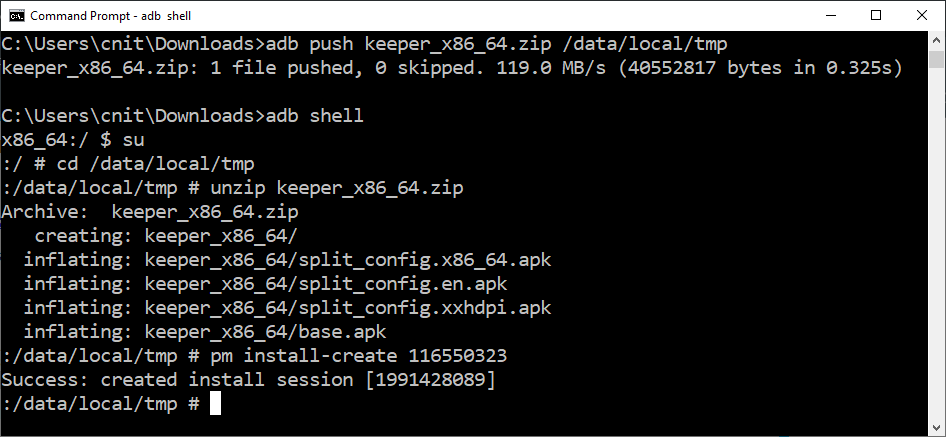
keeper_x86_64.zipThen, on your host system, execute these commands:
adb push keeper_x86_64.zip /data/local/tmp
adb shell
su
cd /data/local/tmp
unzip keeper_x86_64.zip
pm install-create 116550323
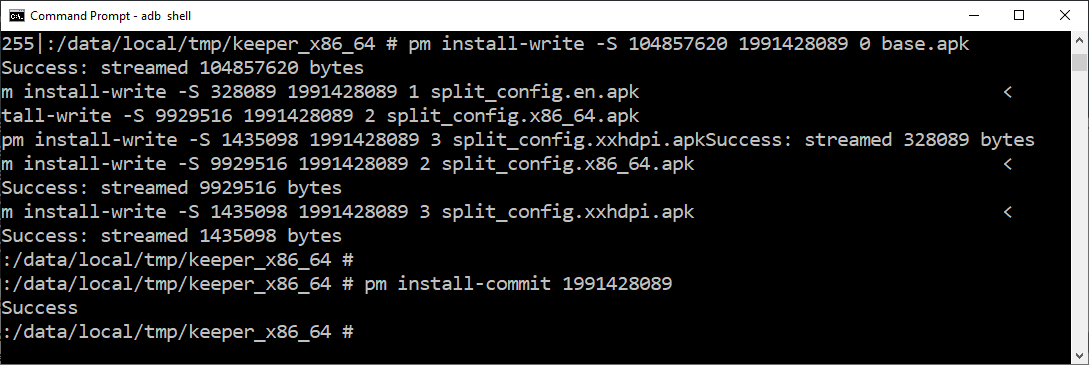
Execute these commands, inserting your correct session ID instead of 1991428089 in each command below.
cd keeper_x86_64
pm install-write -S 104857620 1991428089 0 base.apk
pm install-write -S 328089 1991428089 1 split_config.en.apk
pm install-write -S 9929516 1991428089 2 split_config.x86_64.apk
pm install-write -S 1435098 1991428089 3 split_config.xxhdpi.apk

pm install-commit 1991428089
An Alert box warns you that it's not safe to run it on a rooted phone. They're not wrong. Click "CONTINUE ANYWAY".
In the "Welcome to Your Keeper Vault" screen, click "CREATE ACCOUNT".
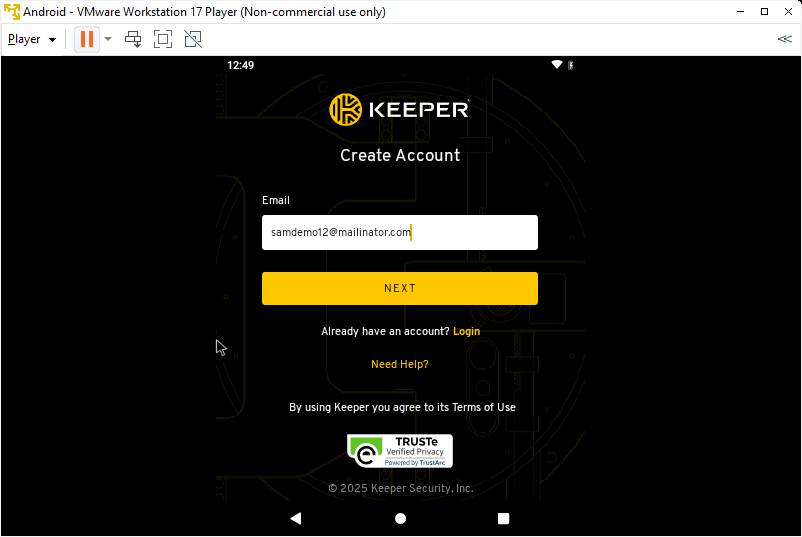
Enter an email address ending in mailinator.com, as shown below, and click NEXT.
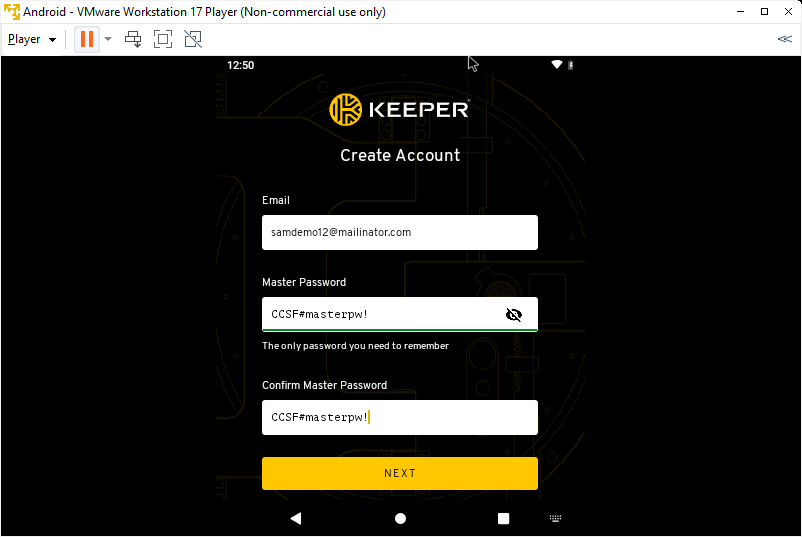
Enter a master password of CCSF#masterpw! twice, as shown below, and click NEXT.
On your host system, open a browser and go to https://mailinator.com.
At the top left, enter your mail account name and click GO.
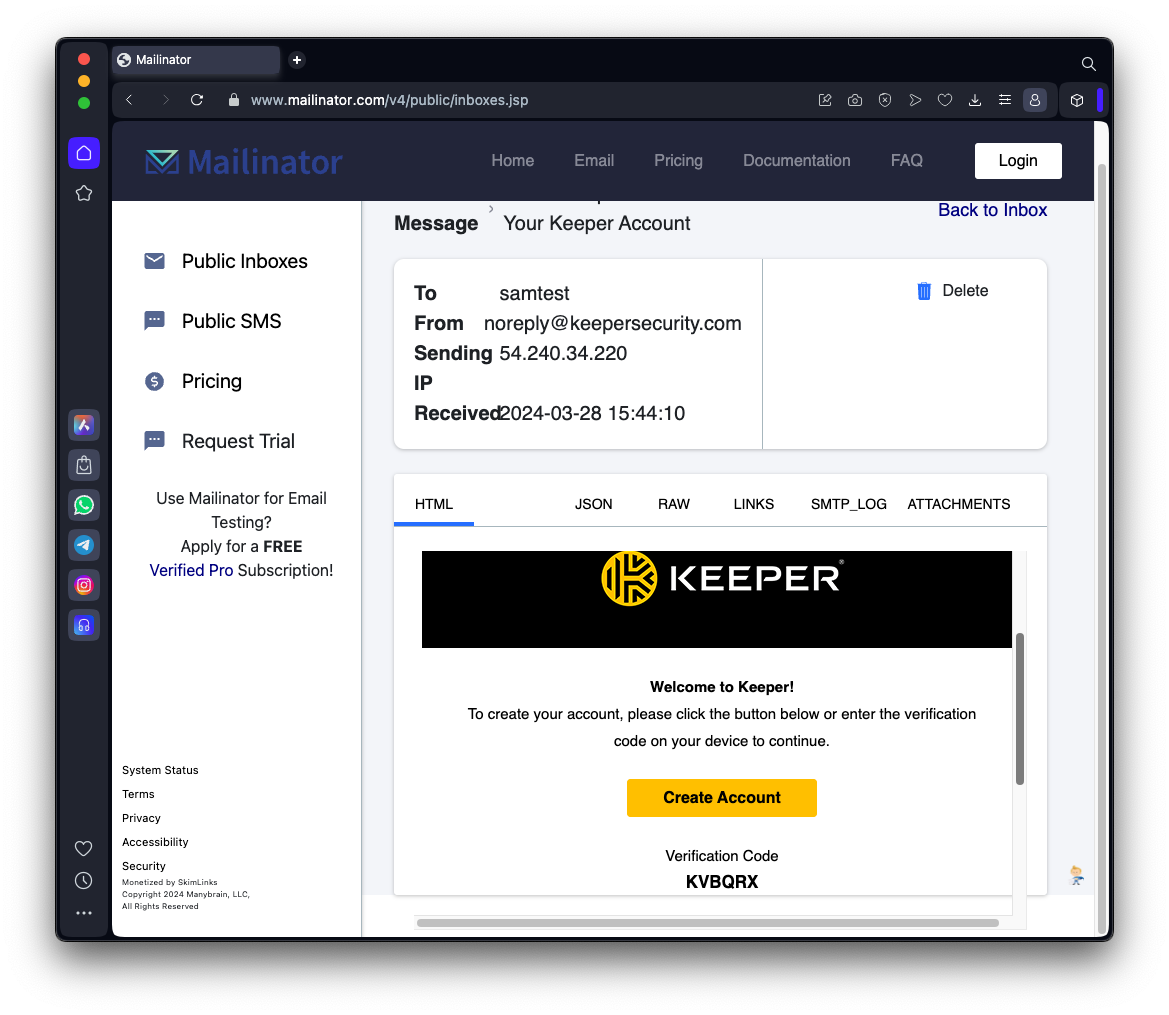
In the email from Keeper, find your Verification Code, as shown below.
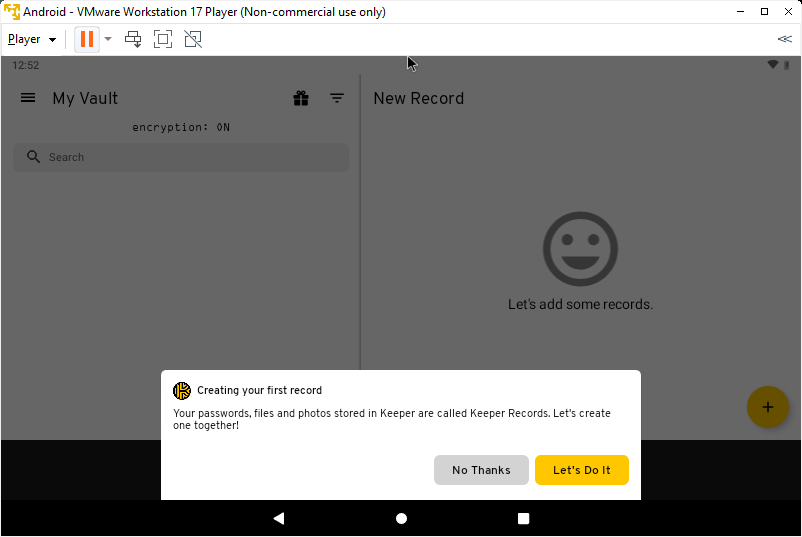
On your Android device, a box appears saying "Creating your first record", as shown below.
click "LET'S DO IT".
At the lower right, click the yellow plus-sign.
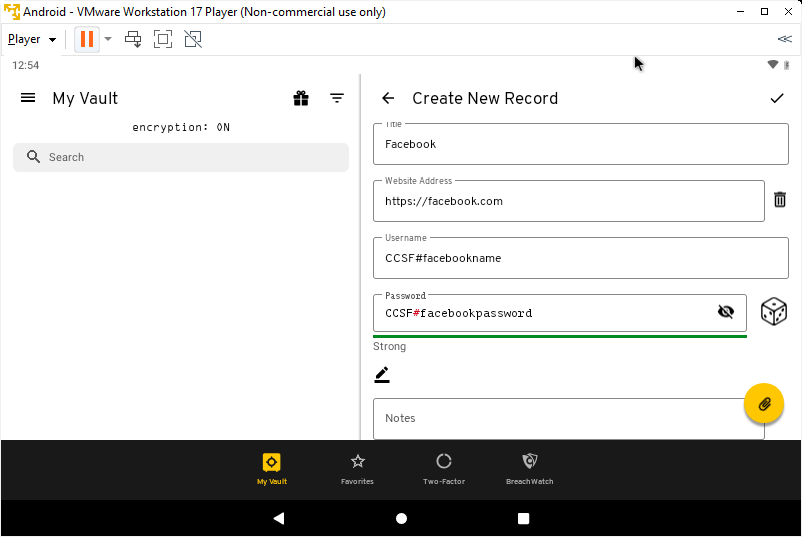
Enter a Facebook username and password, both containing the string CCSF#, as shown below.
At the top right, click the check mark.
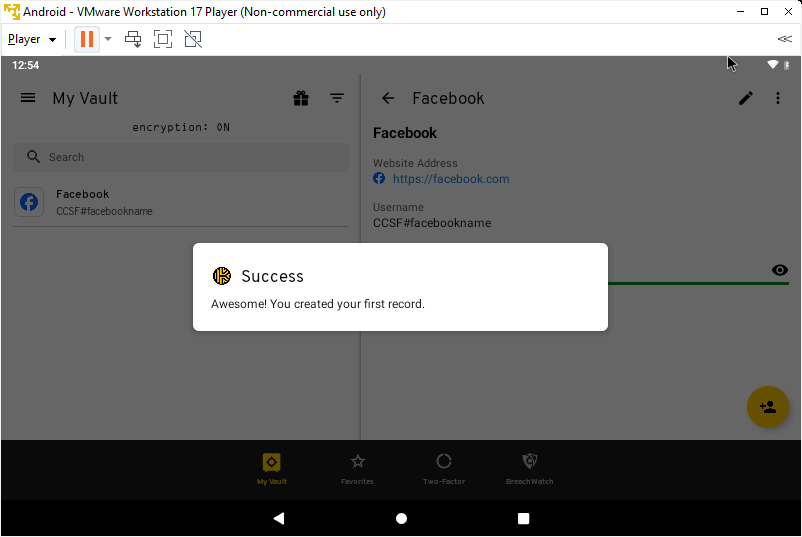
A box pops up saying "You created your first record". as shown below.
adb connect 192.168.30.131
adb shell
ps -A | grep eep
Flag M 522.1: Dumping Memory from Keeper (10 pts)
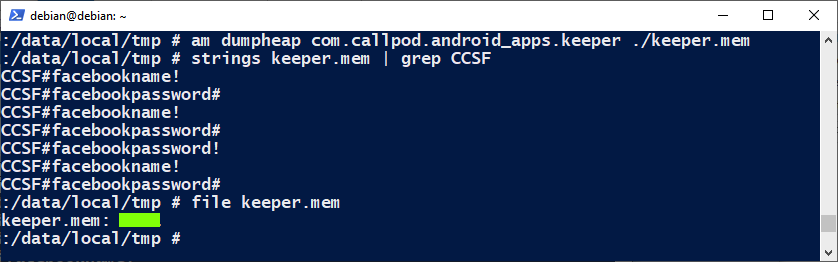
On your Debian Linux system, execute these commands:Many copies of your private data are found, as shown below.The flag is covered by a green rectangle in the image below.
Posted 11-13-25