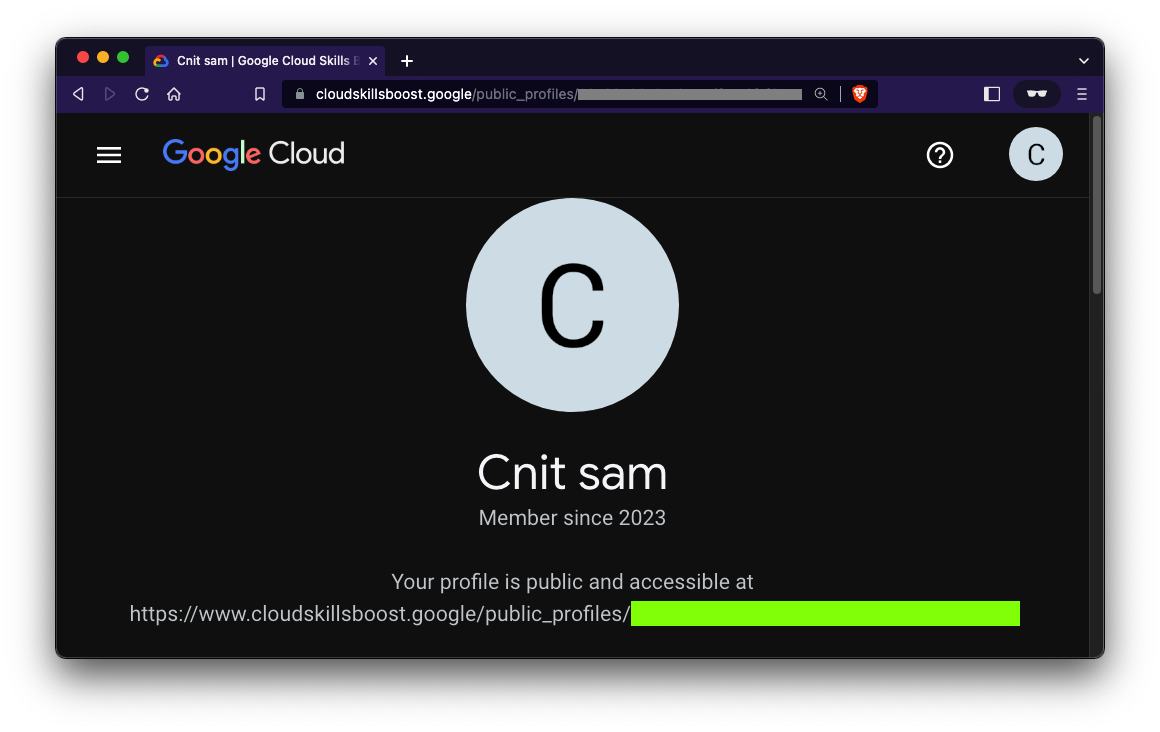
GL Badges (90+ pts)At the top right, click your profile picture, and select "Settings".In the "Public visibility" section, check the box for "Make profile public," then click "Save". Close the Settings window, and open it again. Under the "Make profile public" section, you will see your public profile's URL. The flag is the last portion of your profile URL, covered by a green rectangle in the image below.
|