PMA 41: Windows 11 with Analysis Tools
Launch "Developer PowerShell for VS".
If the option is not there, you must be using a machine without Visual Studio installed. See Project PMA 125 for instructions to install it.
In the Developer PowerShell window, execute these commands:
mkdir c:\hash
cd c:\hash
wget https://samsclass.info/126/proj/hash1.cpp -OutFile .\hash1.cpp
cl /EHsc hash1.cpp
.\hash1.exe
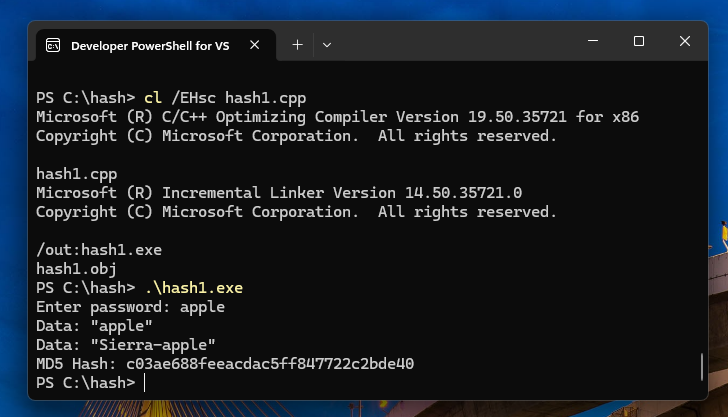
As shown below, the program shows an MD5 hash value
https://www.md5hashgenerator.com/On that Web page, calculate the hash of apple and see that it does not match the hash produced by the hash1.exe program.
The program prefixes a "salt" word to the password before calculating the hash.
On that Web page, calculate the hash of Sierra-apple and see that it now matches the hash produced by the hash1.exe program.
In this case, we have the source code for the program, and it also prints out the salted data before hashing, but in actual malware analysis we won't have those conveniences.
So we'll see how to find the salt value.
Launch Ghidra. If you are prompted to, create a new Project.
Click File, "Import File...".
Navigate to the hash1.exe file and import it.
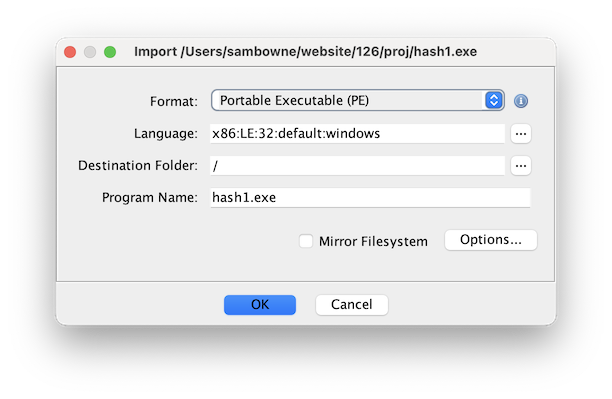
Ghidra identifies that this is a x86 file, as shown below.
Click the OK button.
In the Import Results Summary window, click the OK button.
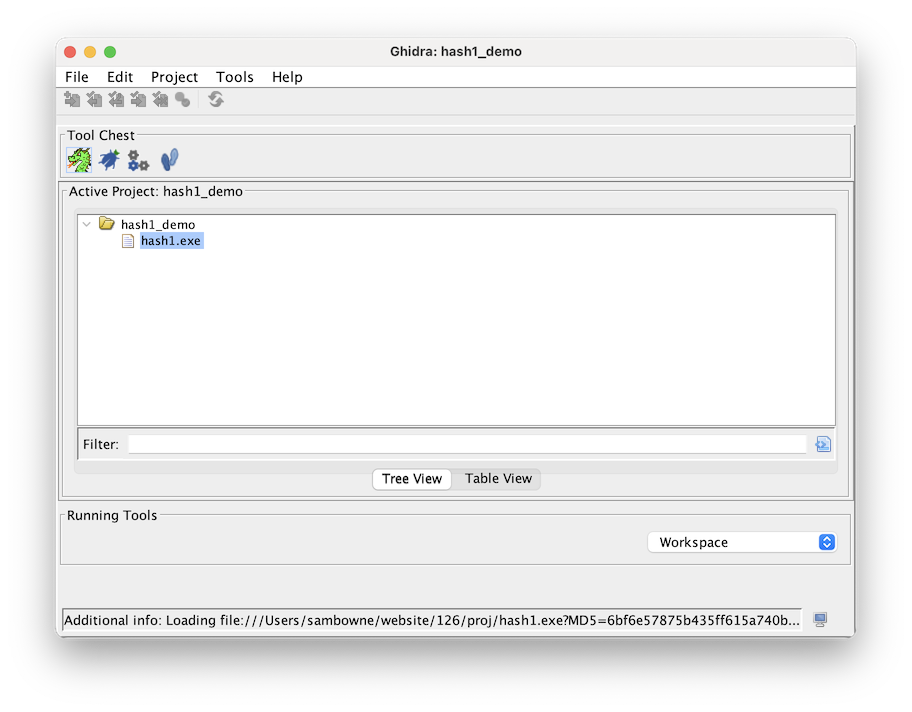
In the project window, double-click hash1.exe, as shown below.
In the "Analyze?" box, click the Yes button.
In the "Analysis Options" box, click the Analyze button.
At the bottom right, progress bars appear. It will take a few minutes to perform the analysis, which includes decompiling all the modules.
When the analysis is complete, an "Auto Analysis Summary" box appears, warning that you did not provide a PDB file with symbols. Click the OK button.
At the top left of the Ghidra window, click File, "Export Program...".
In the "Export hash1.exe" box, select a Format of C/C++, as shown below.
Click the OK button.
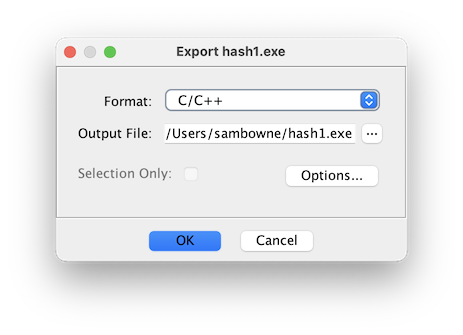
In the "Export Results Summary" box, click the OK button.
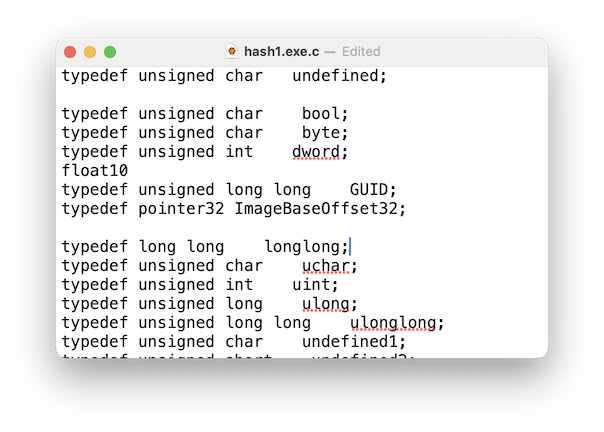
The code is somewhat long and difficult to read, as shown below.
Close the text editor.
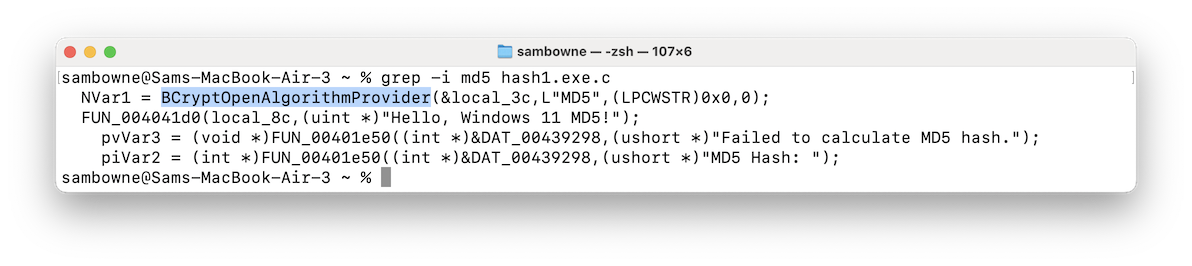
Open a Terminal window and move to the directory containing your decompiled code. Then find lines containing "MD5" or "md5".
On Windows, this command works:
findstr md5 hash1.exe.c
On Linux, this command works:
grep -i md5 hash1.exe.c
Right-click hash1.exe and click "Show more options...", "Open with CFF explorer".
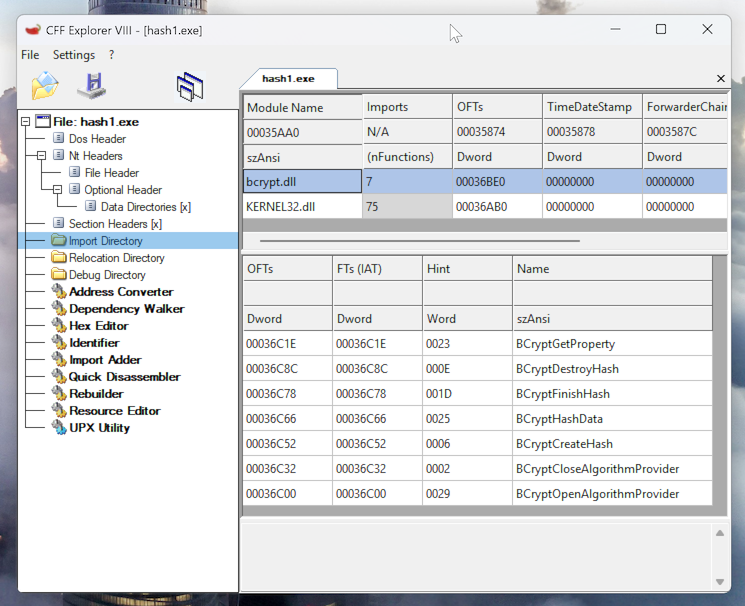
In CFF Explorer, on the left side, click "Import Directory".
On the right side, click bcrypt.dll.
At the lower right, the functions used by this program are listed, starting with "BCryptGetProperty", as shown below.
We need to examine the calls to each of those functions. Leave this window open.
At the top left, from the menu bar, click View, "Executable modules".
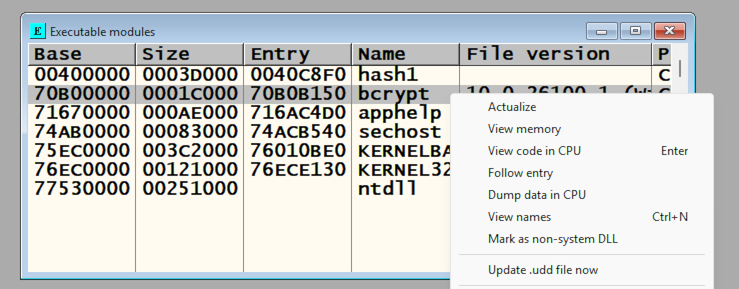
In the "Executable modules" window, right-click bcrypt and click "View names", as shown below.
Highlight each of the function calls you see in CFF explorer and press the F2 button to set a breakpoint at each one.
The seven function calls turn red. Some of them are shown below.
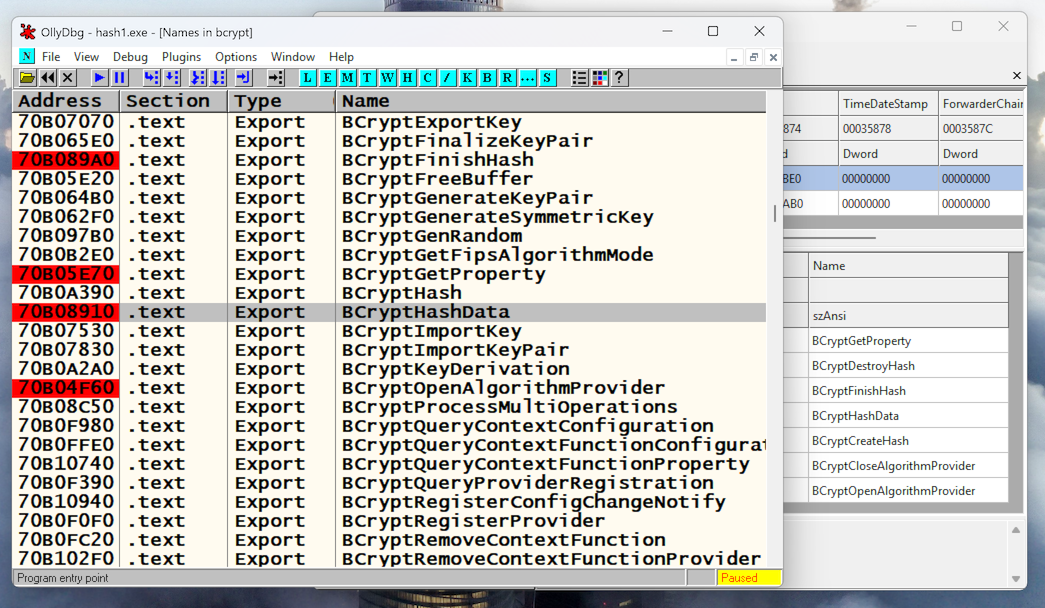
Adjust the window so you can see all four panes well, as shown below.
At the top left, in the toolbar, click the blue right-arrow (the Run button) to run the program.
A command prompt window opens, with a prompt of "Enter password:".
Type in apple and press Enter.
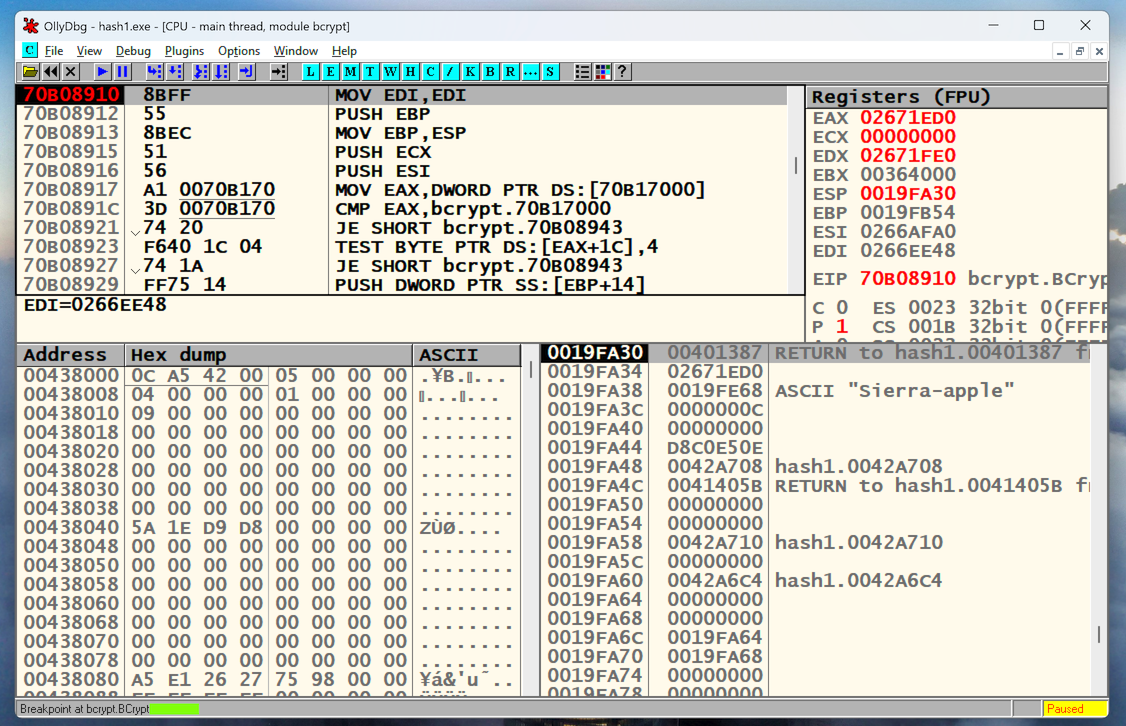
As shown below, the program hits a breakpoint and stops. At the bottom left you can see that it stopped at the BcryptOpenAlgorithmProvider function.
In the lower left pane, you see the stack. An argument for this function call is visible: UNICODE "MD5".
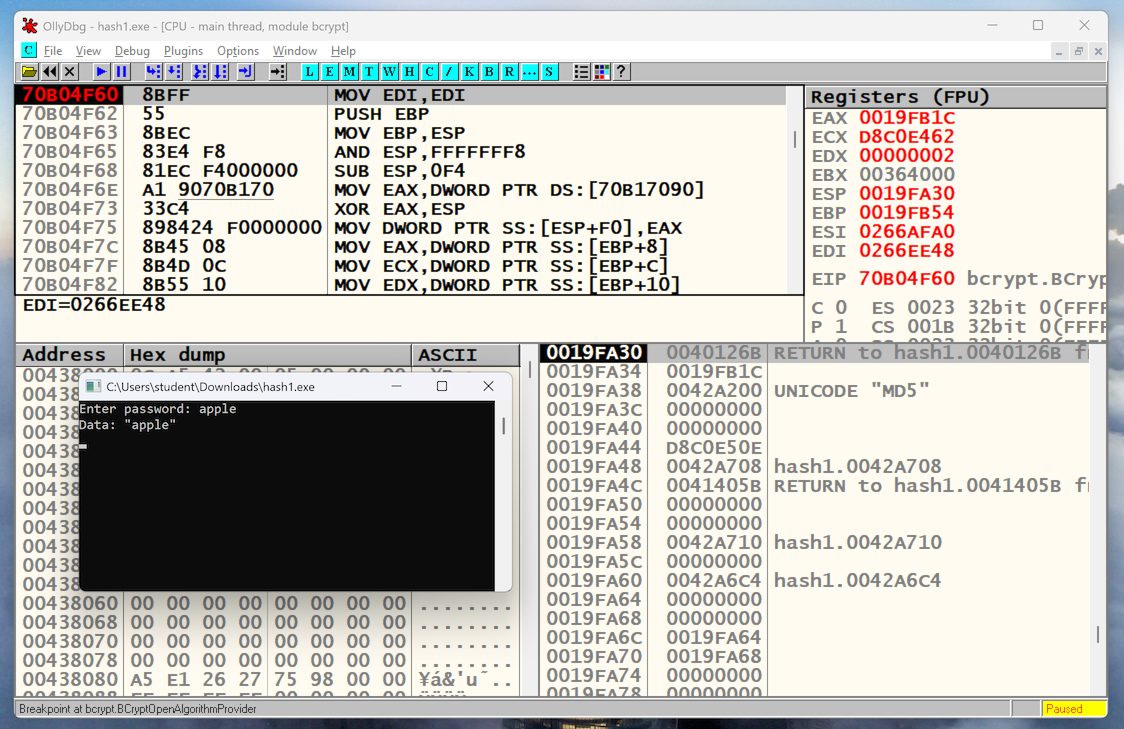
Click the Run button three more times, pausing after each one to let it hit the breakpoint.
You end up with the salted password visible on the stack: Sierra-apple, as shown below.
PMA 406.1: Breakpoint (15 pts)
The flag is covered by a green box in the image below.
Posted 12-9-25
Description updated 12-17-25
Formatting problem fixed 3-30-26